 Academy
Portfolio Toolbox
One-stop portfolio toolkit — Build, Diagnose, Optimize — freely adjust factor weights with AI-driven professional portfolio analysis
What is Portfolio Toolbox? What can it do for you?
What is the "Portfolio Toolbox"?
Portfolio Toolbox is a professional-grade portfolio analysis suite with three core tools:
- Builder: AI builds your optimal portfolio based on your factor preferences
- Diagnosis: Input your existing holdings for deep factor exposure and sector analysis
- Optimization: Given a set of stocks/ETFs, calculate optimal weight allocation using Modern Portfolio Theory
Three tools covering the full portfolio lifecycle — from construction, to analysis, to optimization.
Three Tools at a Glance
| Tool | Problem It Solves | Core Output | Icon |
|---|---|---|---|
| 🔧 Builder | "What stocks should I buy?" | Stock picks + weight suggestions based on factor preferences | 🔵 Wrench |
| 🔍 Diagnosis | "What is my portfolio actually betting on?" | Factor exposure analysis + sector distribution + holdings scoring | 🟢 Scan |
| 📊 Optimization | "What's the best way to allocate weights across these stocks?" | Optimal weight allocation + risk contribution analysis + performance comparison | 🟣 TrendingUp |
Core Value
- Professional quantitative analysis: Institutional-grade factor analysis, risk models, and portfolio optimization algorithms
- 25,000+ tickers covered: Stocks, ETFs, mutual funds across major global markets
- No coding required: Visual interface — drag and slide your way to professional analysis
- Full workflow coverage: From stock picking → diagnosis → rebalancing optimization — one set of tools does it all
- Save history: All analysis results can be saved, reviewed, and compared anytime
What Can You Do with Portfolio Toolbox?
- ✅ Build new portfolios: Tell AI your value/growth/quality preferences, auto-generate a basket of stocks
- ✅ Analyze existing holdings: Upload or manually enter your holdings to see true factor exposure
- ✅ Optimize weights: Give it a few stocks, get the highest Sharpe ratio allocation
- ✅ Risk diagnosis: See if your portfolio is over-concentrated in a sector or factor
- ✅ Performance comparison: Your portfolio vs. benchmark index — who has better risk/return?
- ✅ Manage multiple portfolios: Save multiple portfolio schemes, compare different strategies
Note: Portfolio Toolbox is a quantitative analysis tool, not investment advice. Analysis results are for research reference only — make decisions based on your own judgment and risk tolerance.
Quick Start: 3 Steps for Beginners
Access
- URL: https://www.kavout.com/portfolio-toolbox
- Available for Premium / Max members or Toolbox standalone subscription
- ⚠️ Basic Pro membership does NOT include Toolbox — upgrade to Premium or subscribe separately
- Users without access see the product landing page (NoLoginIndex)
- Left sidebar navigation: Dashboard / Builder / Diagnosis / Optimization
Step 1: Start with Builder, Build Your First Portfolio
Open Builder → set your preferences:
- Select region (US / CA / AU / UK / EU)
- Select market cap range (All Cap / Large / Mid / Small, etc.)
- Adjust factor weight sliders (Quality / Value / Momentum / Growth / Low Volatility)
- Select number of stocks (10 / 20 / 30 / 50 / 100)
- Select weighting method (Equal / Market Cap / Risk Parity)
- Click Run Builder → get a complete portfolio in seconds
💡 Not sure what to pick? Run it with all defaults first, then adjust preferences based on the results.
Step 2: Use Diagnosis to Check Your Real Holdings
If you already have holdings, open Diagnosis:
- Manually enter tickers and weights, or upload a CSV/Excel file
- Click Run Diagnosis → get:
- Factor scores for each stock (quality/value/momentum/growth, etc.)
- Sector distribution pie chart
- Factor return attribution chart
💡 Want to try it quickly? Click "Load Sample Portfolio" to load an example portfolio.
Step 3: Use Optimization to Fine-Tune Weights
Once you have a set of stocks you like, open Optimization:
- Enter 2+ stocks/ETFs/funds
- Choose an optimization strategy (Max Sharpe / Min Volatility / Risk Parity / HRP)
- Set weight constraints (min/max)
- Choose a benchmark index
- Click Run Optimization → get the optimal weight scheme
Dashboard Overview
The first page you see when opening Portfolio Toolbox.
Quick Start Guide
A guide card at the very top of the page — 3 steps to get started:
- Build Your Portfolio (🔧) — Click to open the Builder help modal, learn factor definitions
- Analyze Performance (🔍) — Open the Diagnosis help modal, learn how to input and interpret
- Optimize Allocation (📊) — Open the Optimization help modal, understand optimization strategies
On the right side there's also an external help link that jumps to Kavout Academy's Portfolio Toolbox tutorial page.
💡 Each tool page also has its own Help button — you can open the corresponding help modal anytime for definitions and instructions.
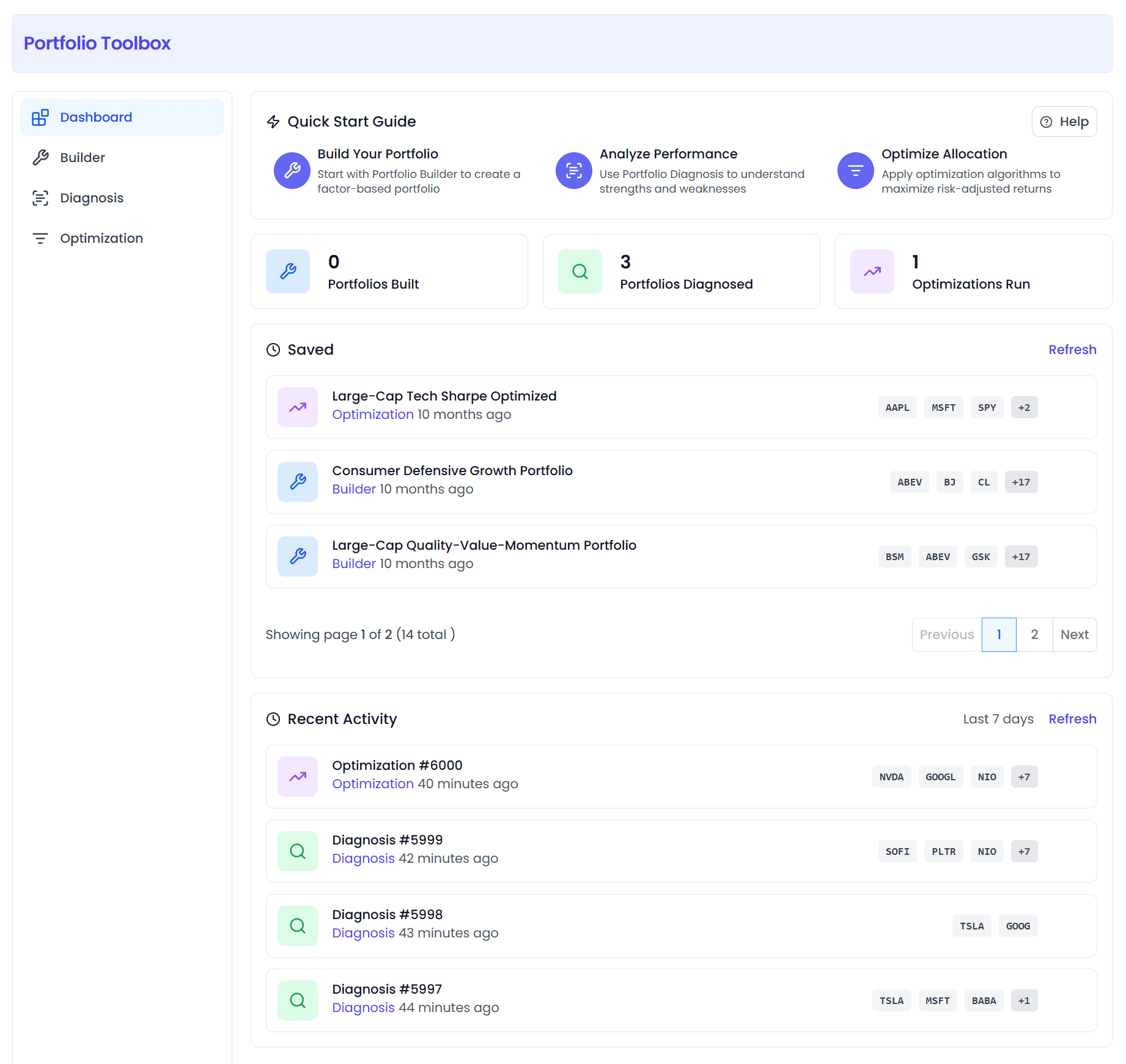
Stats Navigation Cards (3)
| Card | Description | Jumps To |
|---|---|---|
| Portfolios Built | Number of portfolios built | Builder |
| Portfolios Diagnosed | Number of portfolios diagnosed | Diagnosis |
| Optimizations Run | Number of optimizations run | Optimization |
Each card shows the count + most recent record. Click to jump directly to the corresponding tool.
Saved Tab
Shows all saved portfolios/diagnoses/optimizations:
- List format, paginated
- Each item shows: name, type (Builder/Diagnosis/Optimization), creation date
- Actions: View Results, Delete
Recent Activity Tab
Shows all analyses run in the last 7 days:
- Sorted by time (newest first)
- Click any item → auto-jumps to the corresponding tool page and restores the parameters and results from that time
- Data is passed via localStorage, valid for 5 minutes
Builder (Portfolio Builder)
Feature Positioning
Intelligently screens and weights stocks from the entire market based on your factor preferences, building a customized investment portfolio.
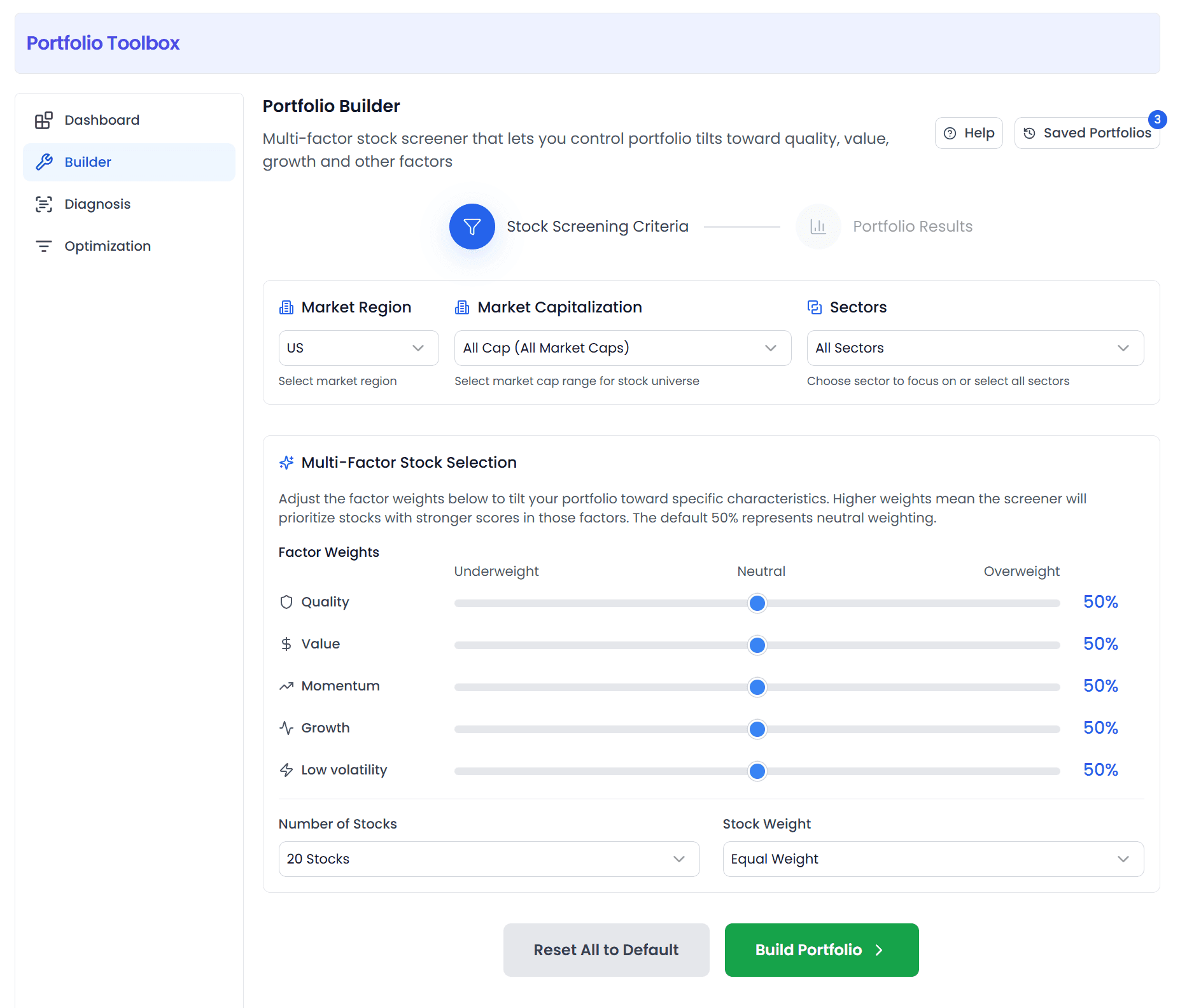
Configuration (Step 1)
① Region
| Option | Description |
|---|---|
| US | US market |
| CA | Canada |
| AU | Australia |
| UK | United Kingdom |
| EU | Europe |
② Market Cap
| Option | Description |
|---|---|
| All Cap | All market caps |
| Large+Mid Cap | Large + mid cap |
| Large Cap | Large cap |
| Mid Cap | Mid cap |
| Small Cap | Small cap |
③ Sector
Default: All Sectors. 11 sectors available for individual filtering:
- Basic Materials / Consumer Cyclical / Financial Services / Real Estate
- Consumer Defensive / Healthcare / Utilities / Communication Services
- Energy / Industrials / Technology
④ Factor Weights
5 sliders, each 0-100, all default 50 (Neutral):
| Factor | Icon | Turning It Up Means | Best For |
|---|---|---|---|
| Quality | 🛡️ Shield | Prefers companies with high ROE, high margins, financial health | Conservative investors |
| Value | 💵 DollarSign | Prefers undervalued companies (low PE/PB/PS) | Value investors |
| Momentum | 📈 TrendingUp | Prefers companies with recent strong gains and upward trends | Trend investors |
| Growth | ⚡ Activity | Prefers companies with high revenue growth and high profit growth | Growth investors |
| Low Volatility | 💫 Zap | Prefers companies with low price volatility and steady performance | Risk-averse investors |
Three slider labels:
- Underweight: 0-40, lower factor influence
- Neutral: 50, default balanced level
- Overweight: 60-100, higher factor influence
💡 Sliders are independent — they don't have to sum to 100. The higher you set a factor, the more weight it has in stock selection.
A Reset All to Default button at the bottom restores everything to 50.
⑤ Number of Stocks
10 / 20 / 30 / 50 / 100 options.
⑥ Stock Weight
| Method | Description | Characteristic |
|---|---|---|
| Equal | Equal weight | Each stock gets same allocation, most diversified |
| Market Cap | Market cap weighted | Larger caps have higher weight, index-like style |
| Risk Parity | Risk parity | Weighted by inverse of volatility, equal risk contribution |
Run Button
- Run Builder → start building (up to 5 minutes wait)
- Progress spinner shown while running
- Red error message shown on failure, retry available
Results (Step 2)
After successful execution, you jump to the results page with 5 modules:
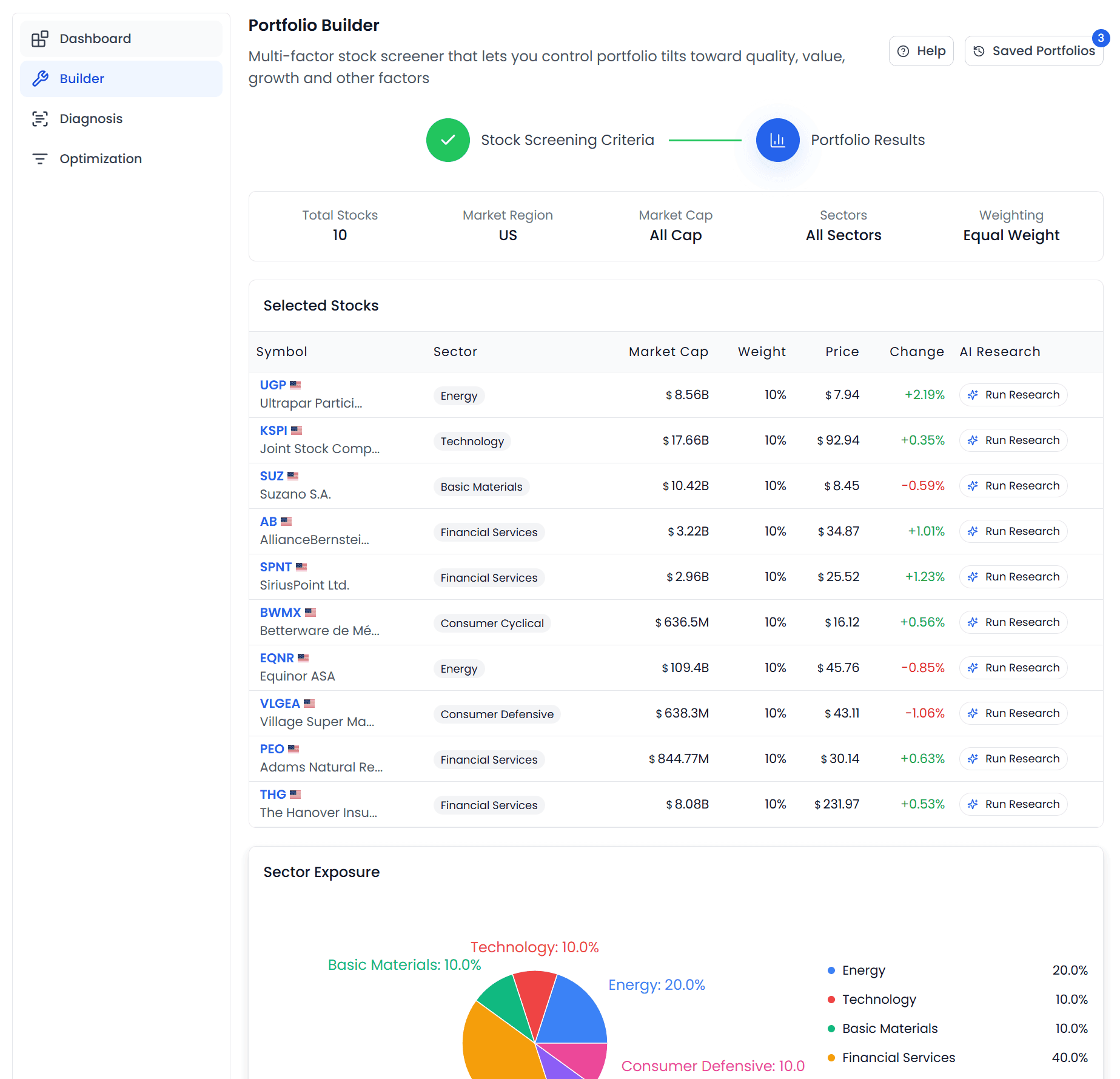
① Portfolio Summary
5 stat cards:
- Number of stocks
- Market cap range
- Sector selection
- Region
- Weighting method
② Selected Stocks Table
| Column | Description |
|---|---|
| Symbol | Ticker + name, click to open detail modal |
| Sector | Sector |
| Market Cap | Market capitalization |
| Weight | Weight in the portfolio |
| Price | Current price |
| Change | Price change % |
| AI Research | AI research tools |
③ Sector Exposure
- Recharts pie chart
- Each sector labeled with percentage
- See sector concentration at a glance
④ Factor Exposure Analysis
- Radar chart (Recharts RadarChart, pentagon)
- Factor progress bar list on the left/below: one progress bar per factor, labeled with specific score
- Five dimensions: Quality / Value / Momentum / Growth / Low Volatility
- 0-10 scale, visualizes the portfolio's factor tilt
⑤ Performance & Risk Measurement
Portfolio vs. benchmark (e.g. S&P 500 / SPY), 6 metrics:
| Metric | Description |
|---|---|
| Last Month Return | Past 1-month return |
| 12 Month Trailing Return | Past 12-month return |
| Annual Volatility | Annualized volatility |
| Max Drawdown | Maximum drawdown |
| Sharpe Ratio | Sharpe ratio (higher = better) |
| Beta | Beta coefficient (volatility relative to benchmark) |
Save & History
- Click Save Portfolio → save dialog pops up, enter a name (with preview summary) → save
- Top toolbar Saved Portfolios button → opens saved list modal:
- Paginated view of all saved portfolios
- Each shows: name, weighting method, date, stock count, market cap, sector
- Factor weight preview (5 squares)
- Performance metrics (last month return, volatility, Sharpe ratio)
- View Results: directly loads results (jumps to Step 2)
- Edit Settings: loads parameters into Step 1 for adjustment
- Delete: deletes the portfolio
- Click Edit Settings → returns to Step 1 to adjust parameters and re-run
- Click New Builder → resets to a fresh configuration
Diagnosis (Portfolio Diagnostics)
Feature Positioning
Input your existing portfolio for deep analysis of factor exposure, sector distribution, and holdings quality — so you can see "what my portfolio is actually betting on."
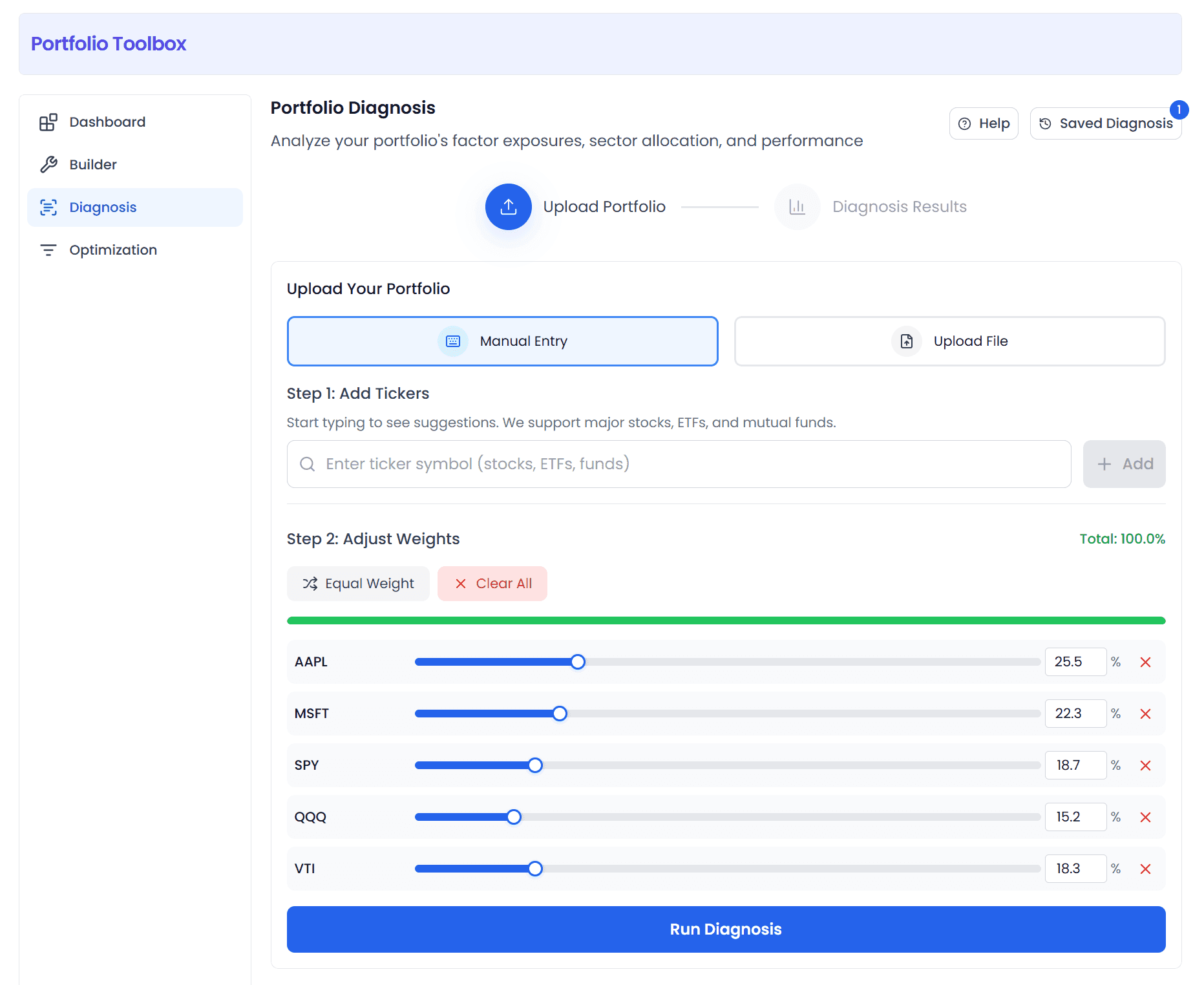
Input Methods (Step 1)
Toggle between Manual Entry / Upload File at the top.
Method 1: Manual Entry
Two sub-steps:
Step 1: Add Tickers
- Search box for ticker entry (300ms debounce + autocomplete)
- Dropdown shows: ticker + name + type label (Stock/ETF/Mutual Fund) + exchange
- Keyboard: ↑↓ to select, Enter to add, Esc to close
- Supports stocks (blue label), ETFs (green label), mutual funds (orange label)
Step 2: Adjust Weights
- Each row: ticker + slider (0-100, step 0.5) + number input + delete button
- Top progress bar shows total weight in real-time:
- 🟢 Green: exactly 100%
- 🟠 Orange: over 100%
- 🔵 Blue: under 100%
- Quick action buttons:
- Equal Weight
- Scale to 100%
- Clear All
💡 If weights don't sum to 100% at run time, they're automatically normalized.
Method 2: Upload File
- Drag & drop upload area, also clickable to select
- Supported formats:
.csv/.xlsx/.txt - Max file size: 1MB
- File must contain Symbol and Weight columns
- After upload shows: holdings count, total weight, filename, list of failed tickers
- After upload you enter the same editing interface as manual entry — you can continue adding/removing
Quick Try
- Load Sample Portfolio: one-click loads AAPL 25.5% / MSFT 22.3% / SPY 18.7% / QQQ 15.2% / VTI 18.3%
Run Diagnosis
- Run Diagnosis → start analysis
- If any stocks have insufficient data, it's noted at the top of results (with excluded ticker list)
Results (Step 2)
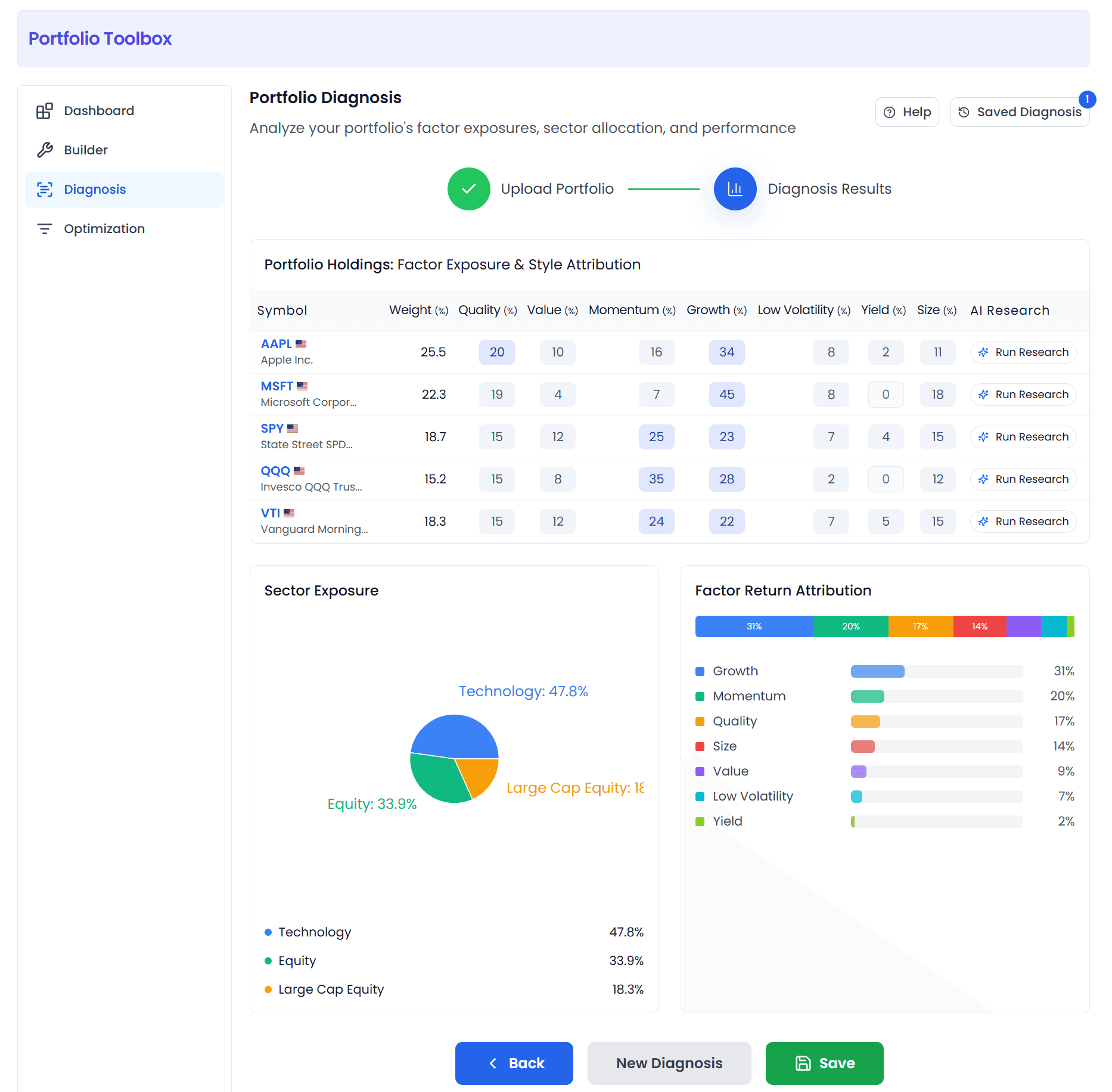
① Diagnosis Adjustments
If any stocks were excluded due to insufficient data, an orange notice bar at the top lists the excluded tickers.
② Portfolio Holdings Table
Each stock shows 7 factor scores (0-100, color-coded):
| Column | Description |
|---|---|
| Symbol | Ticker + name |
| Weight | Holding weight |
| Quality | Quality factor score |
| Value | Value factor score |
| Momentum | Momentum factor score |
| Growth | Growth factor score |
| Low Volatility | Low volatility factor score |
| Yield | Yield factor score |
| Size | Size factor score |
| AI Research | AI research tools |
🎨 Color rules (dark blue → light gray, higher score = darker color):
- ≥ 50: Dark blue (strong factor exposure)
- 20-50: Indigo (moderate)
- 1-20: Slate gray (weaker)
- < 1: Light gray (very weak)
Instantly see each stock's strength across factors.
③ Sector Exposure
- Pie chart showing portfolio weight distribution across sectors
- Quickly determine if the portfolio is over-concentrated in any sector
④ Factor Return Attribution
- Stacked bar chart
- Shows the degree of portfolio return exposure to each factor
- Helps you understand: "Where is my return mainly coming from?"
Save & History
- Save → save dialog pops up, enter name + preview summary → save
- Top toolbar Saved Diagnoses button → opens saved list modal:
- Paginated, each shows name, date, holdings count, total weight, ticker badges
- Factor score preview
- "View weights" expands to show detailed weights
- View Results: loads results into Step 2
- Edit Settings: loads parameters into Step 1 for adjustment
- Delete: deletes the diagnosis
- Click New Diagnosis → resets to a fresh diagnosis
Optimization (Portfolio Optimizer)
Feature Positioning
Given a set of stocks/ETFs/funds, calculate optimal weight allocation based on Modern Portfolio Theory (MPT) to maximize the risk-return ratio.
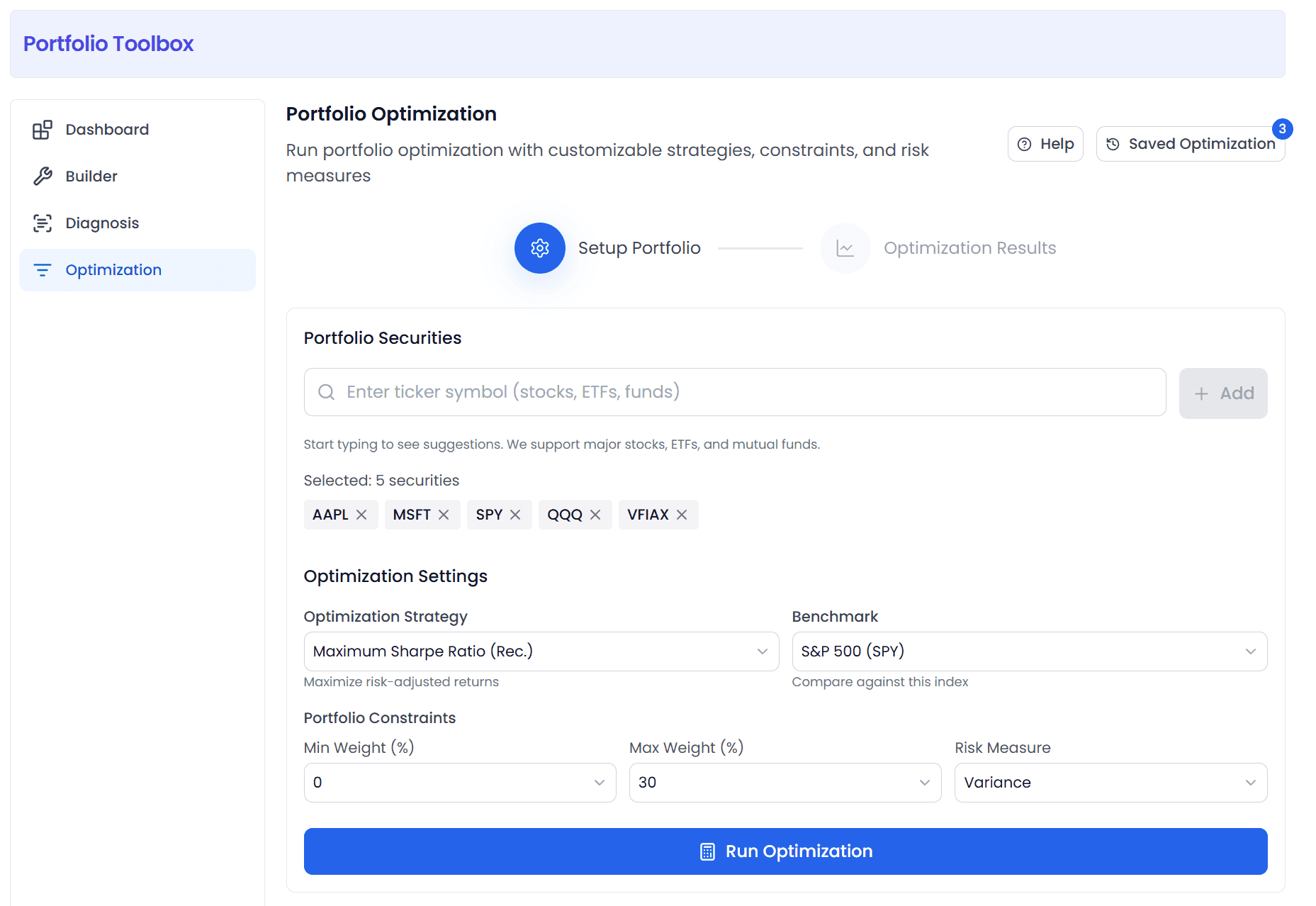
Configuration (Step 1)
① Portfolio Securities
- Search box for ticker entry (supports stocks/ETFs/mutual funds, same autocomplete as Diagnosis)
- Added securities shown as tags; click × to remove
- At least 2 securities required to run optimization
- Load Sample: one-click loads AAPL / MSFT / SPY / QQQ / VFIAX
② Optimization Strategy
| Strategy | Goal | Best For |
|---|---|---|
| Max Sharpe ⭐Recommended | Maximize Sharpe ratio (return/risk) | Best risk-adjusted returns |
| Min Volatility | Minimize portfolio volatility | Most stable, lowest volatility |
| Risk Parity | Equal risk contribution from each asset | Balanced diversification, no single asset dominates risk |
| HRP (Hierarchical Risk Parity) | Hierarchical risk parity based on asset correlations | More robust with many assets and complex correlations |
③ Weight Constraints
- Min Weight: 0 / 0.5 / 1 / 2 / 3 / 5 %
- Max Weight: 5 / 10 / 15 / 20 / 25 / 30 / 40 / 50 %
For example, setting Max Weight = 20% ensures no single asset exceeds 20% of the portfolio, avoiding over-concentration.
④ Risk Measure
| Option | Description |
|---|---|
| Variance | Traditional volatility measure, counts both up and down moves |
| Semi-Deviation | Only counts downside volatility, more aligned with real risk perception |
⑤ Benchmark
Benchmark index for performance comparison:
- SPY (S&P 500)
- IWB (Russell 1000)
- IWM (Russell 2000)
- VTI (Total Market)
Results (Step 2)
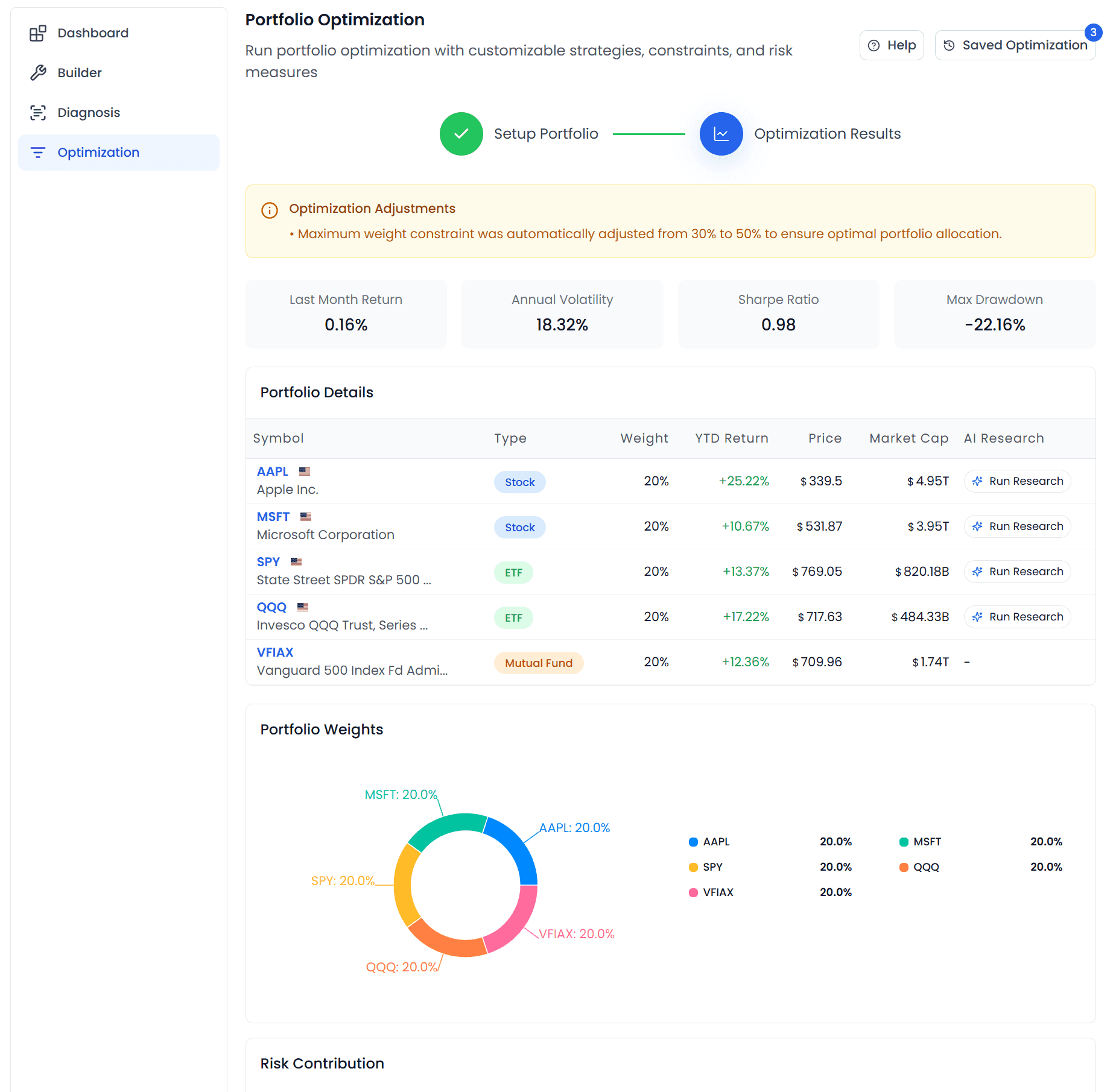
① Optimization Adjustments
A notice bar at the top appears if:
- Weight constraints were too strict and were automatically relaxed (e.g. Max Weight was increased)
- Any assets were excluded due to insufficient data
② Quick Portfolio Summary
4 core metric cards:
- Last Month Return
- Annual Volatility
- Sharpe Ratio
- Max Drawdown
③ Portfolio Details Table
| Column | Description |
|---|---|
| Symbol | Ticker + name |
| Type | Asset type (Stock / ETF / Mutual Fund) |
| Weight | Optimized weight |
| YTD Return | Year-to-date return |
| Price | Current price |
| Market Cap | Market capitalization |
| AI Research | AI research tools |
④ Portfolio Weights
- Donut chart (ring pie chart)
- Visual weight distribution by asset
- With legend — click legend items to toggle display
⑤ Risk Contribution
- Bar chart
- Shows each asset's percentage contribution to total portfolio risk
- ERC (equal risk contribution) reference line: for Risk Parity strategy, all bars should be close to this line
- Quickly spot assets that "look small in weight but contribute large in risk"
⑥ Performance Metrics
Optimized portfolio vs. benchmark index, 6 metrics:
- Last Month Return
- 12 Month Trailing Return
- Annual Volatility
- Max Drawdown
- Sharpe Ratio
- Beta
Save & History
- Save Portfolio → save dialog pops up, enter name → save
- Top toolbar Saved Optimizations button → opens saved list modal:
- Paginated, each shows name, strategy, benchmark, date, asset count
- Performance metrics (return, volatility, Sharpe ratio)
- Ticker display, constraint display
- "View weights" expands to show detailed weights
- View Results: loads results into Step 2
- Edit Settings: loads parameters into Step 1 for adjustment
- Delete: deletes the optimization
- Toast notifications (slide in from top right, auto-dismiss after 4 seconds) for success/failure
- Click New Optimization → resets to a fresh optimization
General Usage Notes
Common Features Across All Three Tools
| Feature | Description |
|---|---|
| Two-step flow | Step 1 configure → Step 2 results, with step indicator at the top |
| Search autocomplete | 300ms debounce + autocomplete dropdown when entering tickers |
| Status indicators | Loading / Success / Error / Empty four states |
| Chart library | Recharts (pie / radar / bar charts) |
| AI Research | All tables integrate AI research buttons |
| Quote modal | Click ticker to open AssetModal details |
| Help modals | Each tool has its own Help button — view factor definitions and instructions anytime |
| Dark mode | Auto-switches following system settings |
Data Flow
Click history record in Dashboard
  → data saved to localStorage
  → jump to the corresponding tool page
  → auto-restores parameters and results from that time
  → valid for 5 minutes, auto-clears after expiry
Access
Portfolio Toolbox is a premium feature requiring one of the following:
- Premium membership
- Max membership
- Toolbox standalone subscription
⚠️ Pro membership does NOT include Toolbox — upgrade to Premium or subscribe separately.
Users without access see the NoLoginIndex product page (with feature demos and upgrade prompts).
FAQ
What's the difference between Builder, Diagnosis, and Optimization? When do I use each?
Simple way to think about it:
- Builder = "What should I buy?" (recommends stocks + weights for you)
- Diagnosis = "How are my current holdings doing?" (analyzes your existing portfolio's factor exposure)
- Optimization = "I have these stocks, what's the best weight allocation?" (calculates optimal ratios for a given set of stocks)
Typical workflow: Builder picks stocks → Diagnosis analyzes → Optimization adjusts weights.
How do Builder's factor weights work?
The five factors (Quality/Value/Momentum/Growth/Low Volatility) each score independently 0-100.
- Higher slider = more weight for that factor in stock selection
- They're not mutually exclusive, and don't need to sum to 100
- The algorithm combines all factor weighted scores to pick the top N ranked stocks
- Think of each slider as "my preference level for this factor"
What assets does Diagnosis support?
Supports stocks, ETFs, and mutual funds. Any ticker with data in the system works. If a ticker has insufficient data, it's automatically excluded and noted at the top.
What's the minimum number of stocks needed for Optimization?
At least 2 assets are required to run optimization. 3-20 works best — too few and there's not much to optimize; too many and weights get too spread out.
What is the Sharpe Ratio?
Sharpe Ratio = (portfolio return - risk-free rate) / portfolio volatility. Measures "how much excess return you get per unit of risk."
- Higher is better — generally >1 is good, >1.5 is excellent
- This metric appears in both Builder and Optimization results
- The Max Sharpe strategy finds the portfolio with the highest Sharpe ratio among all feasible combinations
What is Risk Parity?
Traditional equal weight means "same dollar amount in each stock." Risk parity means "each stock contributes the same amount of risk to the portfolio."
- More volatile assets automatically get lower weight; less volatile get higher weight
- The goal is equal risk contribution from all assets
- Best for investors seeking balanced diversification who don't want any single asset to dominate risk
How often is data updated?
- Real-time data like prices and market cap: updates during trading hours
- Factor scores: recalculated daily after market close
- Portfolio performance metrics: based on historical daily data, updated daily
What file formats are supported for upload?
Three formats: .csv, .xlsx, .txt. Max file size 1MB.
Files must contain at least two columns: Symbol and Weight.
Appendix: Parameter Quick Reference
Builder Parameters
| Parameter | Options | Default |
|---|---|---|
| Region | US / CA / AU / UK / EU | US |
| Market Cap | all-cap / large-mid-cap / large-cap / mid-cap / small-cap | all-cap |
| Sector | all + 11 sectors | all |
| Quality | 0-100 | 50 |
| Value | 0-100 | 50 |
| Momentum | 0-100 | 50 |
| Growth | 0-100 | 50 |
| Low Volatility | 0-100 | 50 |
| Number of Stocks | 10 / 20 / 30 / 50 / 100 | 20 |
| Stock Weight | equal / market-cap / risk-parity | equal |
Optimization Parameters
| Parameter | Options | Default |
|---|---|---|
| Strategy | maxSharpe / minVolatility / riskParity / hrp | maxSharpe |
| Min Weight | 0 / 0.5 / 1 / 2 / 3 / 5 (%) | 0 |
| Max Weight | 5 / 10 / 15 / 20 / 25 / 30 / 40 / 50 (%) | 30 |
| Risk Measure | variance / semiDeviation | variance |
| Benchmark | SPY / IWB / IWM / VTI | SPY |
Diagnosis Factors
7 major factor scores (0-100):
- Quality
- Value
- Momentum
- Growth
- Low Volatility
- Yield
- Size
Screenshots in this article: Actual product UI as of August 2026. For feedback or questions, reach out to our team anytime.