 Academy
Library
Chat history · Research reports · Saved prompts · Articles · Files — one-stop management for all your InvestGPT interactions and assets
What is Library? What can it do for you?
Library is InvestGPT's personal repository. It centrally stores all content generated from your InvestGPT interactions — chat history, AI research reports, saved prompts, bookmarked articles, and uploaded files — so you can review, reuse, and manage your research anytime.
Core Capabilities
| Category | Description |
|---|---|
| 💬 Chat History | All InvestGPT conversations, grouped by date, with star favorites |
| 📊 Research History | AI research analysis reports, including stock deep dives, market outlooks, and more |
| 🔖 Prompts | Saved prompt templates, one-click copy or use directly |
| 📄 Articles | Bookmarked articles, browse by cover image + title |
| 📁 Files | Uploaded documents and images, attachable to any InvestGPT conversation |
Note: All data in Library is tied to your account and syncs automatically after login. Not available to logged-out users.
Quick Start: 3 Steps for Beginners
Access
- URL: https://www.kavout.com/investgpt-history/chat
- Also accessible via the Library button on the InvestGPT page
- Your history auto-loads after login
Step 1: Browse Your Chat History
Default entry is the Chat History page:
- View all conversations with InvestGPT
- Click any conversation title to jump to the corresponding InvestGPT chat
- Click the ⭐ star button to favorite important conversations
- Click 🗑️ to delete records you no longer need
Step 2: Switch Categories to View Different Content
A category tab bar runs across the top of the page (full names on desktop, abbreviated on mobile):
| Tab | Content |
|---|---|
| Chat History | Conversation records |
| Research History | Research analysis reports |
| Prompts History | Saved prompts |
| Articles History | Bookmarked articles |
| Files | Uploaded files (Pro members) |
💡 The Files tab is controlled by a feature flag and may not be visible in some cases.
Step 3: Start New Research Quickly from History
- Chat history: Click a conversation title to jump directly into that InvestGPT chat and continue the discussion
- Research history: Click "View Report" to re-read the full analysis report
- Prompts: Click a card to jump to InvestGPT with the prompt auto-loaded
- Files: Click the "Chat" button to jump to InvestGPT with the file attached
Page Breakdown
1. Library Header (Top Navigation)
All Library pages share the same top navigation bar:
- Left: Library title (desktop only)
- Center/Right: 5 category tabs (Chat / Research / Prompts / Articles / Files)
- Selected tab is highlighted (indigo color)
- On mobile, tabs scroll horizontally and show abbreviated names
2. Common Components
Login Prompt
All Library pages show a login prompt when you're not signed in:
- Icon + "Welcome Back!" title
- Explains that logging in grants access to your content
- "Log In Now" button — auto-redirects back to the original page after login
Empty State
When there's no data, an empty state is shown:
- Large icon + title + description
- Some pages offer "Start Research" and other call-to-action buttons to guide first-time use
Skeleton Loading
Skeleton placeholders are shown while data loads for better visual feedback.
Load More
Data lists support paginated loading with a "Load More" button at the bottom.
Chat History
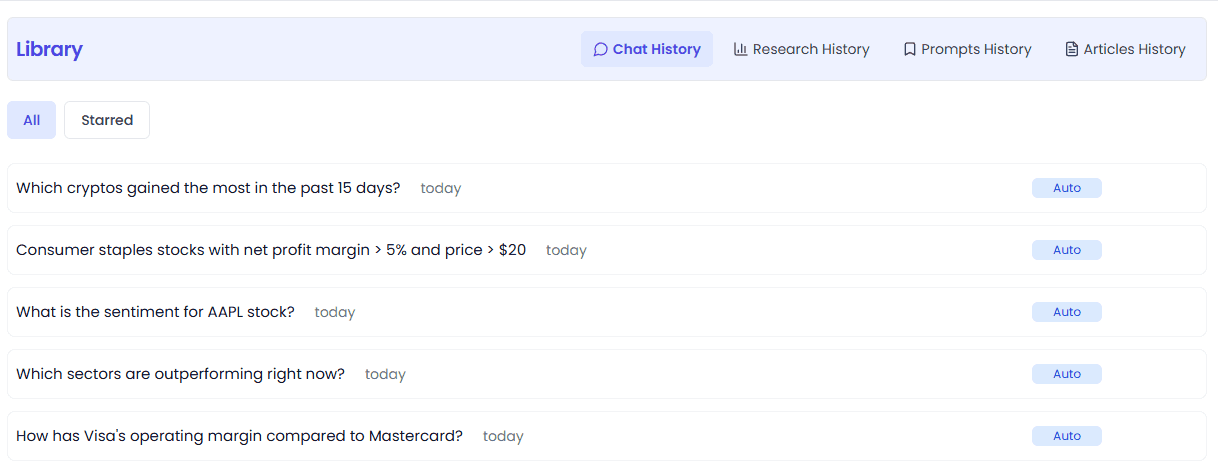
Feature Overview
Chat History records all your conversation sessions with InvestGPT, making it easy to review and continue previous discussions.
Filtering
Two filter tabs at the top:
| Tab | Description |
|---|---|
| All | Show all conversations |
| Starred | Show only favorited conversations |
Switching filters auto-reloads data from page 1.
Conversation List
Each conversation record includes:
| Element | Description |
|---|---|
| Conversation title | Summary of the first message — click to jump to the InvestGPT chat |
| Date | Date of the conversation (grouped by date) |
| Type badge | Conversation type (Research / Auto, etc. — desktop only) |
| ⭐ Star | Favorite / unfavorite the conversation |
| 🗑️ Delete | Delete this conversation record |
Star Favorites
- Click the ⭐ button to mark a conversation as a favorite
- Favorited conversations have a filled yellow star
- Use the top "Starred" filter to quickly find favorited chats
On mobile, star and delete buttons are always visible; on desktop, they're hidden by default and appear on hover.
Pagination
- 15 conversations per page
- "Load more" button at the bottom
- Conversations are grouped by date
Research History
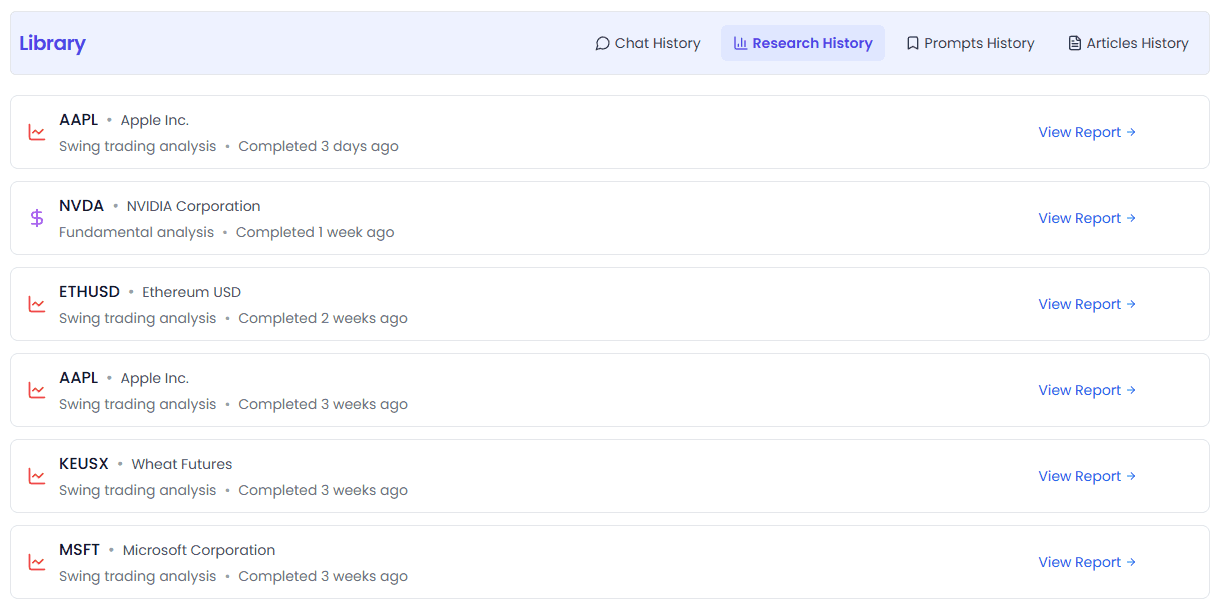
Feature Overview
Research History saves all AI research analysis reports generated through InvestGPT, including stock deep dives, market outlooks, and more.
Analysis Record List
Each record includes:
| Element | Description |
|---|---|
| Icon / Flag | Analysis type icon; market outlook types show the corresponding country flag |
| Symbol | Ticker + company name (market outlook shows market name) |
| Analysis type | Type name of the report (e.g. Deep Dive, Financial Statement, etc.) |
| Status / Time | "Running..." in progress, or "Completed + timestamp" |
| View Report | Click to open the analysis report drawer |
| 🗑️ Delete | Delete this analysis record |
Analysis Types
Supports multiple AI research analysis types, each with its own icon and color coding. Common types include:
| Type | Description |
|---|---|
| Deep Dive | In-depth research report |
| Financial Statement | Financial statement analysis |
| Kai Score Analysis | Kai Score rating analysis |
| Market Outlook | Market outlook (by country/region) |
| and more | More types continuously expanding |
Market outlook records show the corresponding country flag and market name (e.g. "US Market", "China Market", etc.).
Viewing Reports
Click "View Report" or the record itself to open the analysis report drawer on the right:
- Full analysis results displayed
- Back navigation supported
- Can review both in-progress and completed reports
Pagination
- 10 analysis records per page
- "Load More" button at the bottom
In-Progress Analysis
- Status shows as "Running..." or "Analysis in progress..."
- Status auto-updates when report generation completes
Prompts (Saved Prompts)
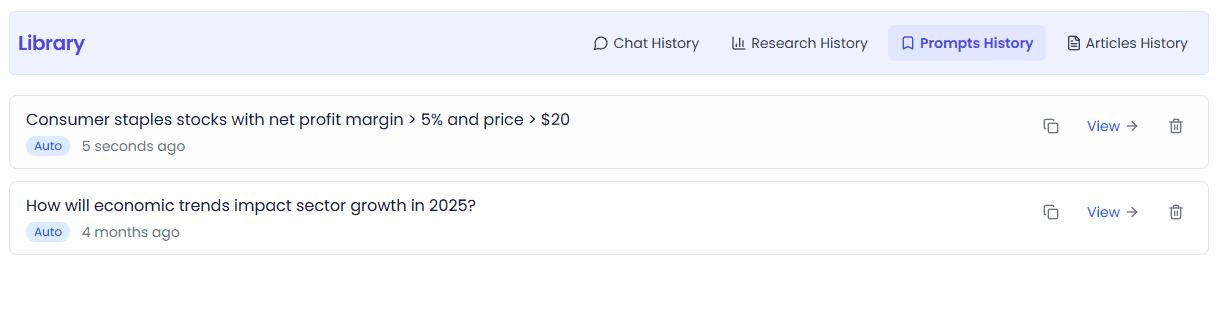
Feature Overview
Prompts stores your collection of high-quality prompt templates for easy reuse. You can save prompts you like from InvestGPT conversations and manage them all in Library.
Saving Prompts from InvestGPT
You can save any prompt directly from an InvestGPT conversation to your Prompts library:
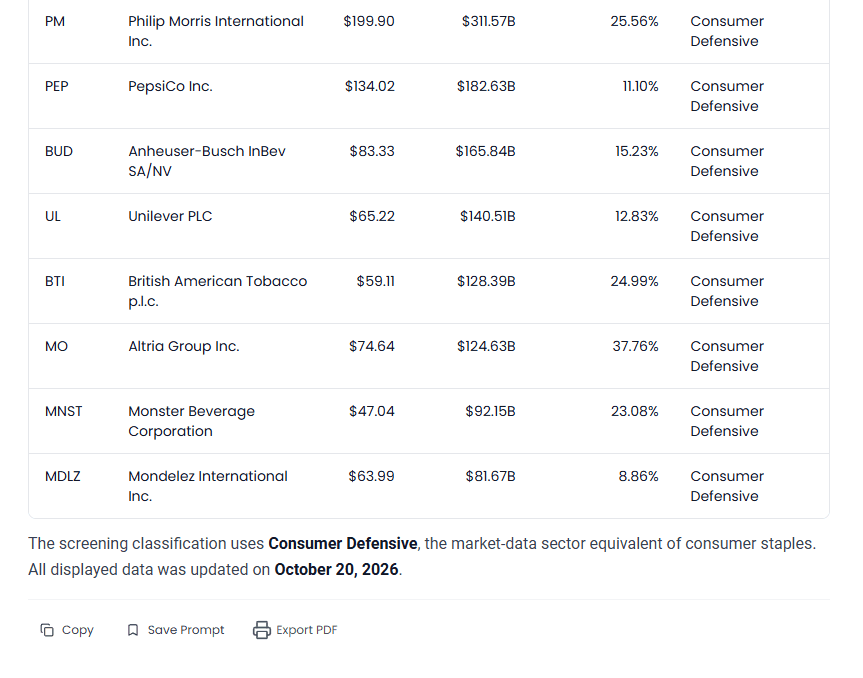
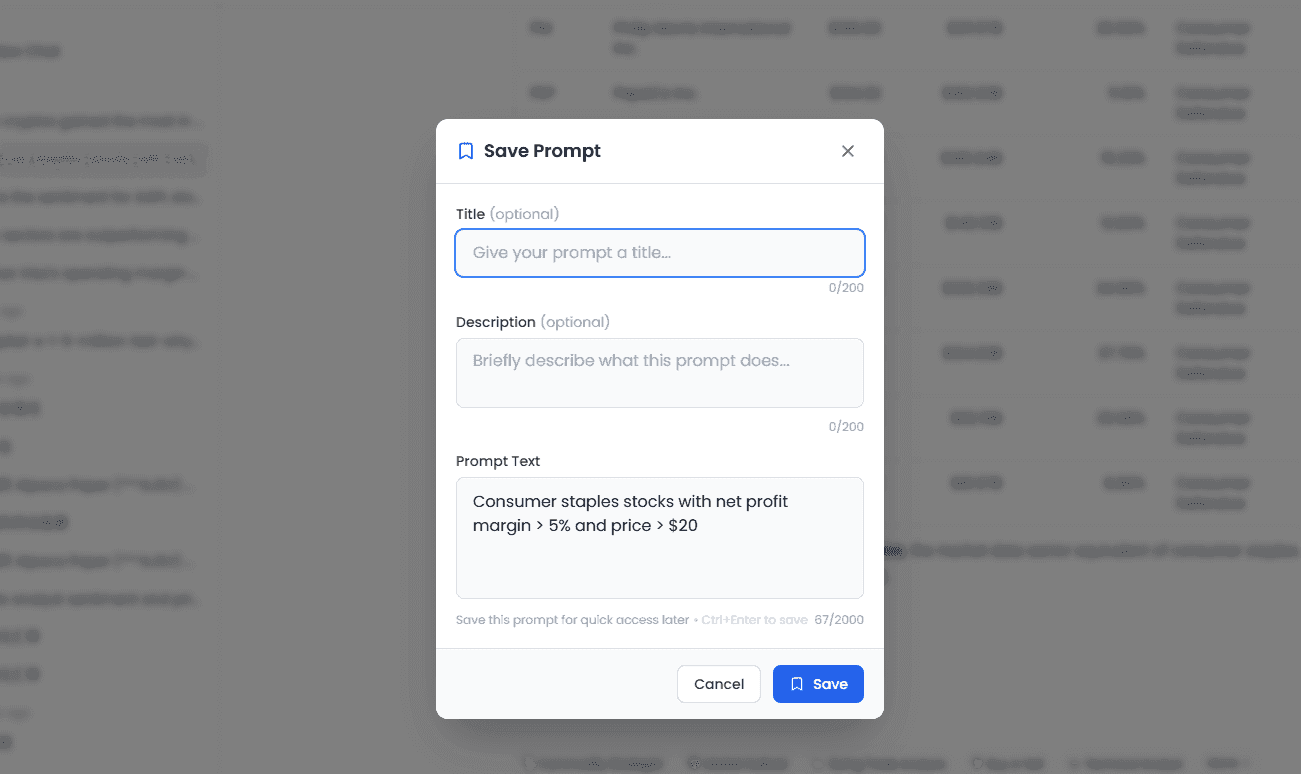
- Saved Prompts Button: At the bottom of each conversation round (next to your input message), you'll find a Saved Prompts button.
- Save Modal: Click the button to open a save prompt popup.
- Fill in the details:
- Prompt (auto-filled): The current prompt text is pre-populated and cannot be edited
- Title (optional): Give the prompt a custom title for easy identification
- Description (optional): Add a brief description of what this prompt is for
- Save: Click Save to add the prompt to your Prompts library
Title and description are both optional — if left blank, the prompt will be saved using the prompt text itself as the identifier.
Once saved, the prompt appears in your Prompts library and can be reused anytime.
Prompt Cards
Each prompt card includes:
| Element | Description |
|---|---|
| Title (optional) | Title label for the prompt |
| Description (optional) | Brief description of the prompt |
| Prompt text | Actual content of the prompt (max 2 lines shown) |
| Type badge | Research / Auto type indicator |
| Created date | Date saved |
| 📋 Copy button | One-click copy of prompt text |
| View | Click card to jump to InvestGPT and load the prompt |
| 🗑️ Delete | Delete this prompt |
Copy Function
- Click the 📋 copy button to auto-copy prompt text to clipboard
- Button changes to ✅ green checkmark after successful copy, reverts after 2 seconds
- Copy operation doesn't leave the current page
Direct Use
- Click anywhere on the card (except copy and delete buttons) to auto-jump to InvestGPT
- Auto-loads the corresponding prompt and mode (Research / Auto)
- Just send it in InvestGPT to start a new conversation
Pagination
- 10 prompts per page
- Bottom paginator supports page number jumping and prev/next
- Desktop shows full page numbers; mobile shows "current page / total pages"
Articles (Saved Articles)
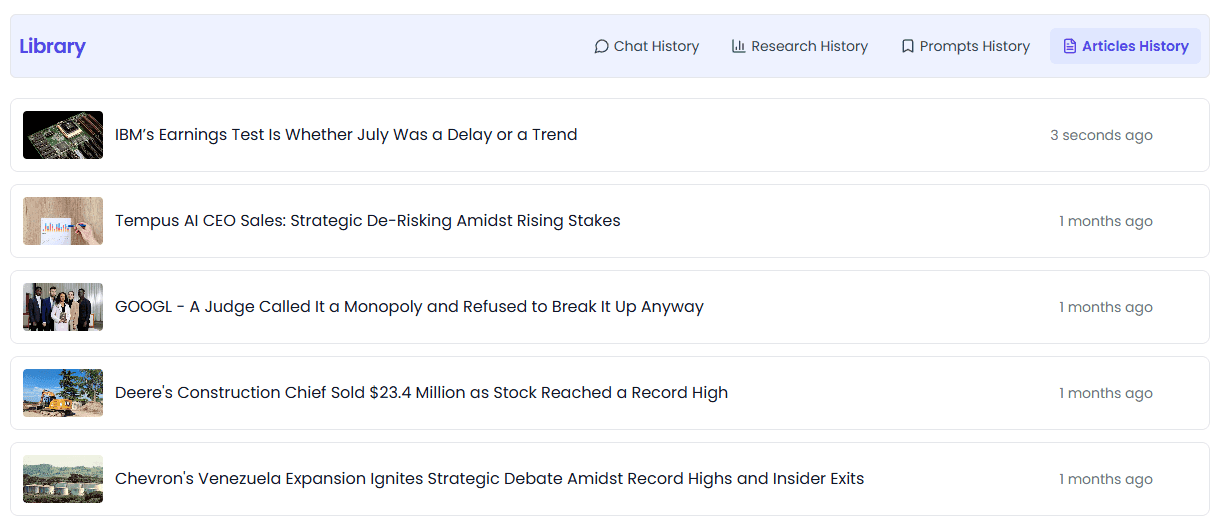
Feature Overview
Articles stores articles you've bookmarked from InvestGPT or other pages for easy access anytime.
Saving Articles
You can save any article directly from its detail page to your Articles library:
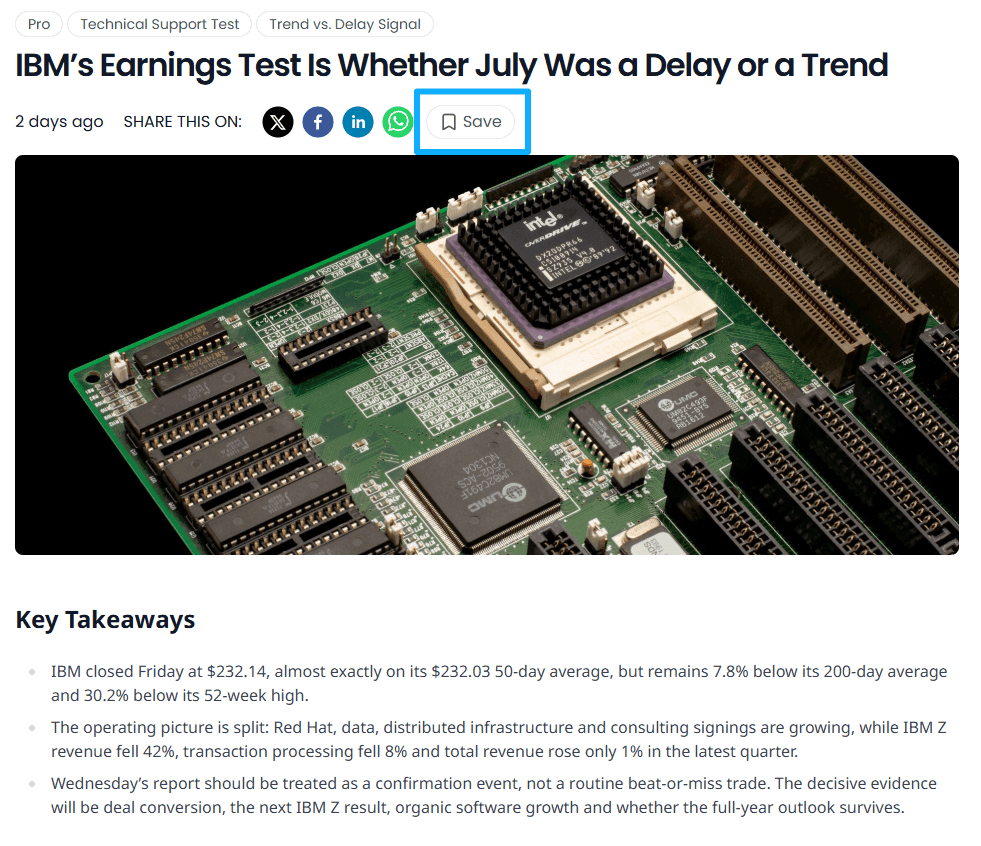
- Open an article to view its detail page
- Below the article title, you'll find a Save button
- Click the Save button to add the article to your saved articles
Once saved, the article appears in your Articles library and can be accessed anytime.
Article List
Each article includes:
| Element | Description |
|---|---|
| Cover image | Article cover thumbnail (if available) |
| Title | Article title — click to jump to the original article |
| Saved date | Date the article was saved |
| 🗑️ Delete | Remove article from bookmarks |
Layout
- Desktop: Cover image + title + date arranged horizontally
- Mobile: Cover image + title on top, date below
- Cover size: desktop 80×48px, mobile 64×40px
External Links
- Both article title and cover link to the original URL
- Click to open in new/current tab
- Deleting doesn't affect the original article
Pagination
- 8 articles per page
- "Load more" button at the bottom
Files (File Management)
⚠️ Pro exclusive feature. Free users can view the page but cannot upload files. Files access is controlled by a feature flag — some users may temporarily not see this tab.
Feature Overview
Files is your personal file storage space. Uploaded documents and images can be attached to any InvestGPT conversation, letting AI analyze and answer based on your files.
Storage Quota
A storage quota card appears in the top right:
| Info | Description |
|---|---|
| Ring progress bar | Percentage of storage used (colors: normal purple, 70%+ orange, 90%+ red) |
| Used / Total capacity | Bytes (B / KB / MB / GB auto-converted) |
| File count | Uploaded files / max files |
| Upload button | Upload files |
Supported File Types
Three Upload Categories
| Type | Description | Single File Size Limit |
|---|---|---|
| Files | Documents: PDF, Word, Excel, PowerPoint, CSV, TXT, etc. | 20 MB |
| Image | Images: PNG, JPG, HEIC, GIF, etc. | 10 MB |
| Portfolio file | Portfolio files (CSV/XLSX/PDF, etc.) | 1 MB |
File Type Categories
The system auto-categorizes files into:
| Category | Formats |
|---|---|
| Documents | PDF, DOC/DOCX/DOCM, RTF, ODT, EPUB, TXT, MD |
| Spreadsheets | XLS/XLSX/XLSM/XLSB, CSV, TSV, ODS |
| Slides | PPT/PPS/POT, PPTX/PPTM/PPSX/PPSM, ODP |
| Photos | PNG, JPG/JPEG, GIF, WEBP, BMP, TIF/TIFF, HEIC/HEIF |
| Data | JSON, XML, HTML/HTM, YAML/YML |
Upload Methods
Method 1: Click to Upload
- Click the top "Upload" button to select files
- Click the ▼ next to the button to expand a dropdown and choose upload type (Files / Image / Portfolio file)
- For free users, the top of the dropdown shows an "Upgrade plan" entry
Method 2: Drag & Drop Upload
- Drag files anywhere on the page — the page auto-highlights a drop zone
- Release the mouse to start uploading
- Full-page overlay + "Drop to upload" prompt
- Free users see an upgrade toast on drag & drop
Method 3: File Picker
- Clicking the drop zone in the middle of the page also opens the file picker
- When no files exist, the zone is larger (hero style); narrows to a single line once files exist
Upload Progress
During upload, a progress list appears:
- One row per file, showing filename and status
- 🔄 Uploading / ✅ Done / ⚠️ Error
- Failed files show error reason
- After upload completes, click "Clear" to dismiss the progress list
Frontend pre-validation runs before upload (file size, extension) — invalid files show an error directly without a network request.
File List
Layout
- Card-style grid layout
- Desktop: 5 columns, tablet: 3 columns, mobile: 2 columns
- Each card shows thumbnail/icon, filename, size, date
File Card Display Rules
- Images: Direct thumbnail display (supports PNG/JPG/JPEG/GIF/WEBP/BMP)
- Documents: Colored block + extension + icon by type
- PDF: blue
- Other documents: sky blue
- Spreadsheets: emerald green
- Slides: orange
- Data files: purple
- Images (formats not previewable by browser): gray
Card Actions (on hover)
- 👁️ Preview — preview the file
- 🗑️ Delete — delete the file
- Top-left checkbox — bulk select
- Bottom-right Chat button — jump to InvestGPT with the file attached
Search & Filtering
| Feature | Description |
|---|---|
| Search box | Search by filename, real-time filtering |
| Type filter | All / Documents / Spreadsheets / Slides / Photos / Data, with count badges |
| No results | Shows "No files match." prompt |
Bulk Actions
- After selecting multiple files, the toolbar shows the selection count
- Click "Delete" button to bulk delete
- Click ✕ to clear selection
File Preview
Click the preview button to open a preview modal:
| File Type | Preview Method |
|---|---|
| Images | Direct large image display (max 1600px wide) |
| Embedded iframe rendering | |
| Text types (TXT/MD/CSV/JSON/XML/YAML/HTML) | Shows text content (truncated after 50,000 characters) |
| Other formats | Shows "Cannot preview" prompt + "Open in new tab" button |
The preview modal also shows:
- Filename
- File size and upload date
- "Open" external link button (opens original file in a new tab)
Chat Integration
- Click the "Chat" button on a file card
- Auto-jumps to the InvestGPT page
- File is auto-attached to the dialog (shown as a chip tag)
- Just type your question and AI will answer based on that file
Deleting Files
- Single file delete: Hover and click 🗑️
- Bulk delete: Select files then click the top Delete button
- Confirmation dialog appears before deletion
- Deleted files are removed from storage
- Note: Conversations that used the file are unaffected — their answers remain intact
Permissions & Plan Differences
Free vs Pro
| Feature | Free Users | Pro Members |
|---|---|---|
| Chat History | ✅ | ✅ |
| Research History | ✅ | ✅ |
| Prompts (saved prompts) | ✅ | ✅ |
| Articles (saved articles) | ✅ | ✅ |
| Files (file management) — browse | ✅ | ✅ |
| Files (file upload) | 🔒 upgrade prompt | ✅ |
| Storage capacity | 0 GB | Configured by plan |
| File count limit | 0 | Configured by plan |
Upgrade Prompts
Free users on the Files page see:
- Upload button becomes an upgrade prompt ("Upgrade to upload your own files")
- Upload dropdown has an "Upgrade plan" entry at the top
- Drag & drop files triggers an upgrade toast
- Optional Upgrade Hero card showing different plan capacities
FAQ
How long is my history saved?
All history (chats, research, prompts, articles, files) is saved long-term unless you actively delete it.
Can deleted records be recovered?
Deletion is irreversible. Please confirm before deleting — data is removed from the server after deletion.
Can I export my history?
Currently Library does not offer bulk export. You can manually view and copy content on each page.
Is there a limit to how many stars/favorites I can have?
There's no limit on star favorites — you can favorite any number of conversations.
Are uploaded files secure?
Files are stored in secure cloud object storage and only accessible by your account. Uploaded files are only used for InvestGPT conversation analysis you initiate.
What if my file exceeds the size limit?
- Documents: max 20 MB, images: max 10 MB, portfolio files: max 1 MB
- Files exceeding limits are intercepted during frontend pre-validation with a prompt
- Large files should be compressed or split before uploading
- Up to 10 files can be attached per conversation
Why can't I see the Files tab?
The Files feature is controlled by a feature flag and may be in gradual rollout. If you're a Pro member but don't see the Files entry, contact support to confirm.
Can I close the page while a research report is generating?
Yes. Analysis runs in the background — closing the page won't interrupt it. You can view the completed report when you open Research History again.
How do I save a prompt?
In InvestGPT conversations, click the Saved Prompts button at the bottom of each conversation round to open the save modal. You can optionally fill in a title and description, then click Save to add it to your Prompts library. For more details, see Saving Prompts from InvestGPT.
How do I save an article?
When viewing an article on its detail page, click the Save button below the article title to add the article to your Articles library. For more details, see Saving Articles.
Appendix: URLs & Quick Actions
Page URLs
Visiting the root path
/investgpt-historyauto-redirects to the Chat History page.
Quick Action Reference
| Action | Location |
|---|---|
| Switch category | Library Header tab bar at the top |
| Filter starred chats | Chat page top All / Starred tabs |
| Search files | Files page search box |
| Filter files by type | Files page type filter tabs |
| Upload files | Files page Upload button / drag & drop |
| Preview files | Files card hover → 👁️ icon |
| Start chat with a file | Files card Chat button |
| Copy a prompt | Prompts card 📋 button |
| View research report | Research list View Report / click record |
| Delete records | Each list item 🗑️ delete button |
| Bulk delete files | Files multi-select → top Delete button |
| Load more | Bottom of each list — Load more button |
Category Feature Comparison
| Feature | Chat | Research | Prompts | Articles | Files |
|---|---|---|---|---|---|
| View type | Row list | Row list | Card list | Row list | Card grid |
| Search | ❌ | ❌ | ❌ | ❌ | ✅ by filename |
| Filtering | ⭐ star | ❌ | ❌ | ❌ | file type + search |
| Star / favorite | ✅ | ❌ | ❌ | ❌ | ❌ |
| Delete method | Direct delete | Direct delete | Confirm dialog | Direct delete | Confirm dialog |
| Bulk delete | ❌ | ❌ | ❌ | ❌ | ✅ |
| Pagination method | Load More | Load More | Numbered pages | Load More | Load More |
| Per page | 15 | 10 | 10 | 8 | 40 |
| Detail view | Jump to chat page | Side drawer | Jump to chat page | External link | Preview modal |
| Pro required | ❌ | ❌ | ❌ | ❌ | Upload only |
| Login required | ✅ | ✅ | ✅ | ✅ | ✅ |
| Dark mode | ✅ | ✅ | ✅ | ✅ | ✅ |
| Mobile adaptation | Responsive rows | Stacked cards | Responsive cards | Stacked cards | 2-column grid |
Screenshots in this article: Actual product UI as of August 2026. For feedback or questions, reach out to our team anytime.
Market Calendar
Your all-in-one financial calendar — earnings, dividends, economic data, IPOs, holidays — all the important dates that move markets in one place.
My Portfolios
One-stop portfolio management with broker account auto-sync and AI-powered diagnostics — connect your brokerage accounts and track holdings, P&L, and AI insights in real time