 Academy
My Portfolios
One-stop portfolio management with broker account auto-sync and AI-powered diagnostics — connect your brokerage accounts and track holdings, P&L, and AI insights in real time
What is My Portfolios? What can it do for you?
My Portfolios is Kavout's portfolio management center. You can connect brokerage accounts (auto-sync holdings) or upload portfolio files, and view all your accounts' assets, P&L, AI diagnostics, and optimization suggestions in one unified dashboard.
Core Capabilities
| Capability | Description |
|---|---|
| 🔗 Broker Connections | Supports 100+ brokers, securely connected via SnapTrade, holdings auto-synced daily |
| 📁 File Upload | Supports CSV / TSV / TXT / XLSX formats, manually import holdings data |
| 📊 Multi-Account Aggregation | Merge multiple broker accounts, easily switch between single-account and all-accounts view |
| 💰 P&L Tracking | Cost basis, daily P&L, total return, cash balance — all at a glance |
| ⚡ AI Diagnosis | Factor exposure analysis, run Portfolio Diagnosis with one click |
| 🎯 AI Optimization | Weight optimization suggestions based on Modern Portfolio Theory |
| 🔔 Email Alerts | Daily email summary of portfolio events (earnings, analyst updates, insider trades, etc.) |
| 🛡️ Secure & Reliable | Bank-grade encryption via SnapTrade, read-only access — no trading capability |
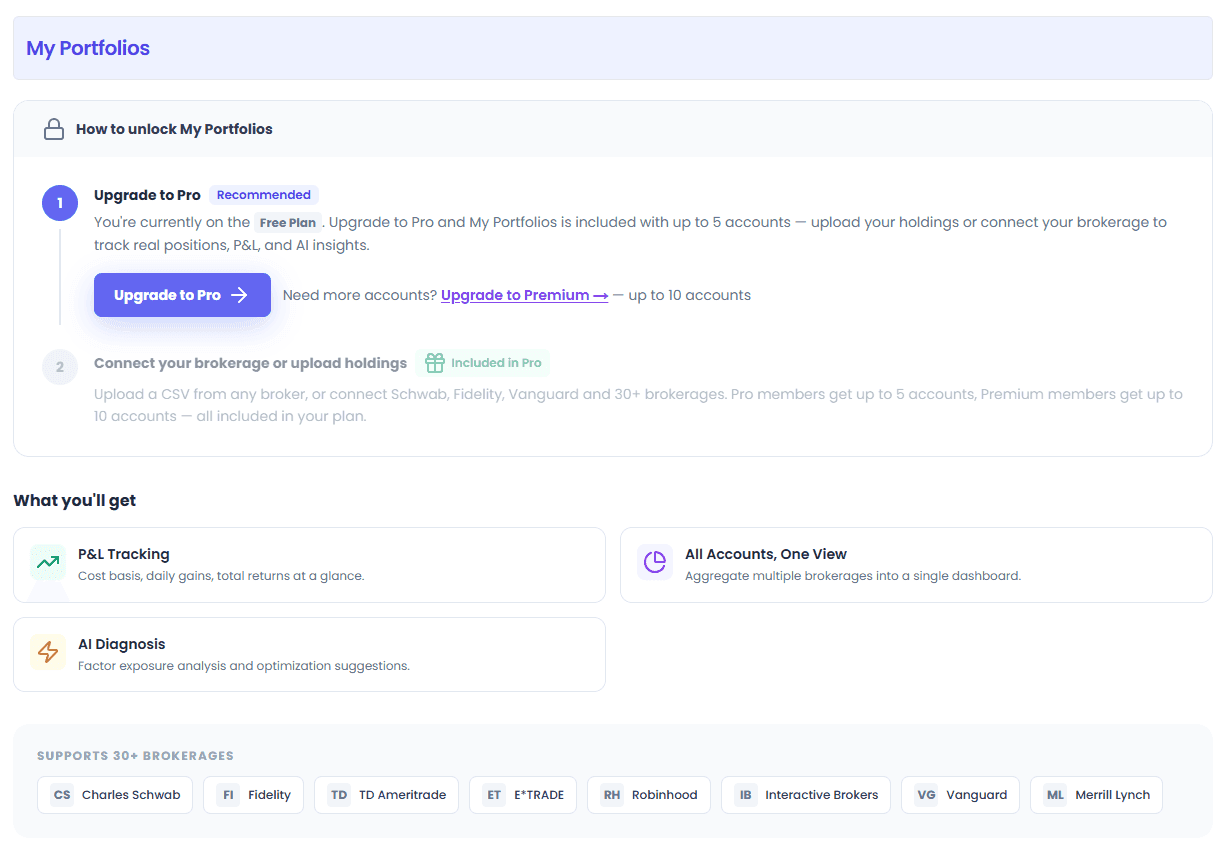
Note: My Portfolios is a paid feature. Available on Pro and above plans. Different plans support different numbers of accounts.
Quick Start: 3 Steps for Beginners
Access
- URL: https://www.kavout.com/my-portfolios
- Requires Pro or higher subscription
Step 1: Connect a Broker or Upload Holdings
There are two ways to add your portfolio:
| Method | Best For | Advantages |
|---|---|---|
| 🔗 Connect Broker Account | Users with US brokerage accounts | Auto-sync, holdings updated daily |
| 📁 Upload Holdings File | Investors in any market | Flexible, supports manual maintenance |
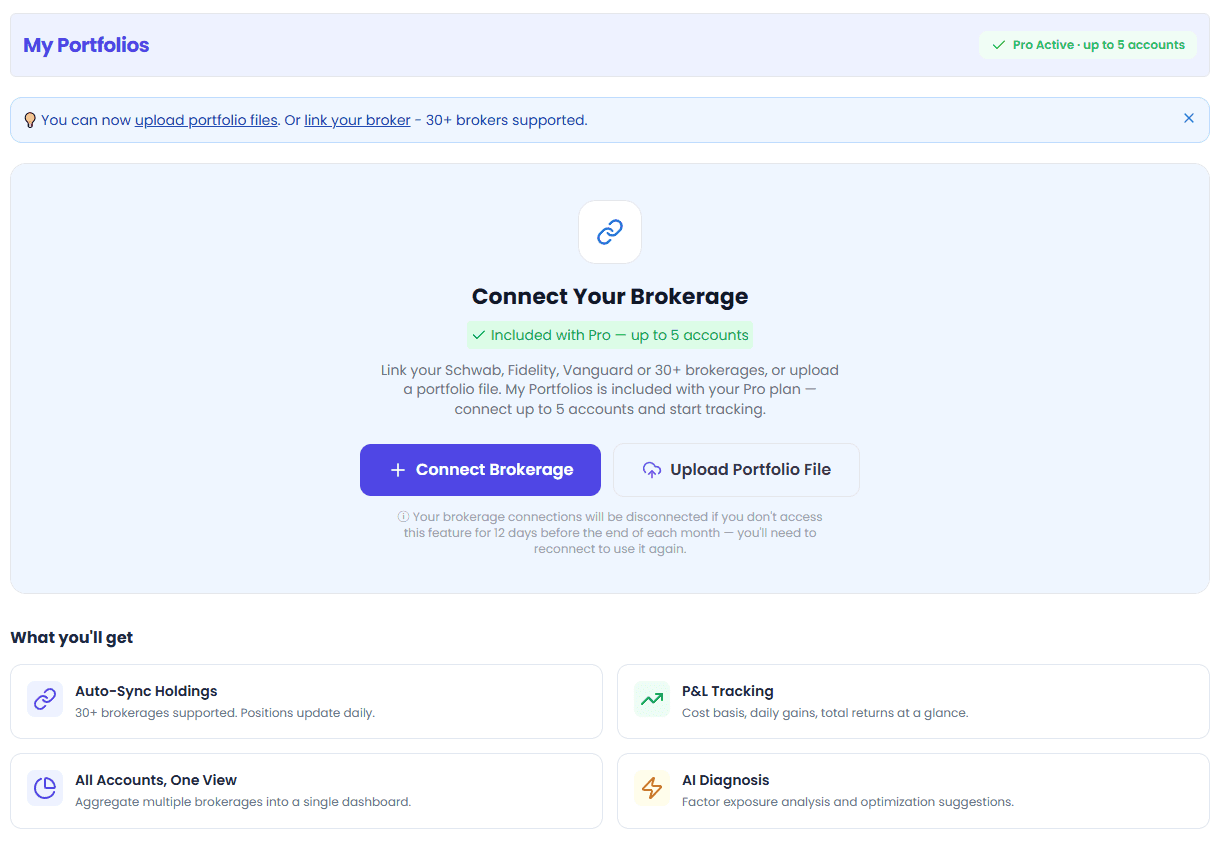
Connect a Broker Account:
- Click the + Add Account button
- Select your broker in the connection window
- Enter your broker credentials (securely encrypted via SnapTrade)
- After authorization, the system automatically syncs your holdings
Upload a Holdings File:
- Click the Upload button
- Select a file (CSV / TSV / TXT / XLSX)
- The system auto-parses and previews your holdings
- Edit/supplement share counts and cost basis, then click Import
💡 You can use both methods simultaneously — connect broker accounts AND upload holdings from other markets, all aggregated into one dashboard.
Step 2: View the Overview Dashboard
After connecting/uploading, you'll see:
- Top stats cards: Total market value, total return, cost basis, cash balance
- Holdings table: Each stock's ticker, shares, cost, current price, weight, gain/loss
- Account cards: Arranged horizontally for multiple accounts, click to switch views
Step 3: Try AI Diagnosis
Above the holdings table, click the Run Diagnosis button:
- Analyze your portfolio's factor exposure (Quality, Value, Momentum, Growth, Low Volatility, Yield, Size)
- Discover concentration risks and opportunities in your portfolio
- Get AI optimization suggestions (requires Premium or higher plan)
Connecting Broker Accounts
Supported Brokers
Connected via SnapTrade, supporting 100+ brokers, including:
| Broker | Description |
|---|---|
| Charles Schwab | |
| Fidelity | |
| TD Ameritrade | |
| E*TRADE | |
| Robinhood | |
| Interactive Brokers | |
| Vanguard | |
| Merrill Lynch | |
| … and more | 100+ brokers |
Connection Flow
- Click + Add Account
- The SnapTrade connection window pops up
- Search for and select your broker
- Enter your broker login credentials
- Select which accounts to sync (you may have multiple)
- Complete authorization, the system starts syncing holdings
- Automatically redirects to the holdings page after sync completes
🔒 Security Note: Kavout connects to your broker through SnapTrade using bank-grade 256-bit AES encryption. We only have read-only access — we cannot perform any trading operations or transfer funds.
Account Limits
Different plans support different numbers of connected broker accounts:
| Plan | Account Limit |
|---|---|
| Pro | 5 accounts |
| Premium | 10 accounts |
| Max | 15 accounts |
| AppSumo Tier 1 | 1 account |
| AppSumo Tier 2 | 5 accounts |
| AppSumo Tier 3+ | 10 accounts |
Sync & Refresh
- Auto-sync: Holdings automatically sync when the page loads
- Manual sync: Click the 🔄 Sync button to refresh immediately
- Sync icon: The button icon spins while syncing
- Only SnapTrade-connected accounts support sync; uploaded files need manual updates
Reconnecting an Expired Connection
If your broker connection expires due to inactivity (default: 12 days):
- A yellow Account Connection Warning appears at the top of the page
- Click the Reconnect button to re-authorize
- Or click ✕ to dismiss the warning (only refreshes backend status)
Disconnecting
- On the account card, click ⋯ menu → Disconnect
- Click Disconnect in the confirmation dialog
- All associated holdings data will be removed
- You can reconnect anytime after disconnecting
Uploading Holdings Files
Supported File Formats
| Format | Extension | Description |
|---|---|---|
| CSV | .csv | Most common, comma-separated |
| TSV | .tsv | Tab-separated |
| TXT | .txt | Text file |
| XLSX | .xlsx | Excel spreadsheet |
The system automatically detects the file format and parses it.
Upload Steps
-
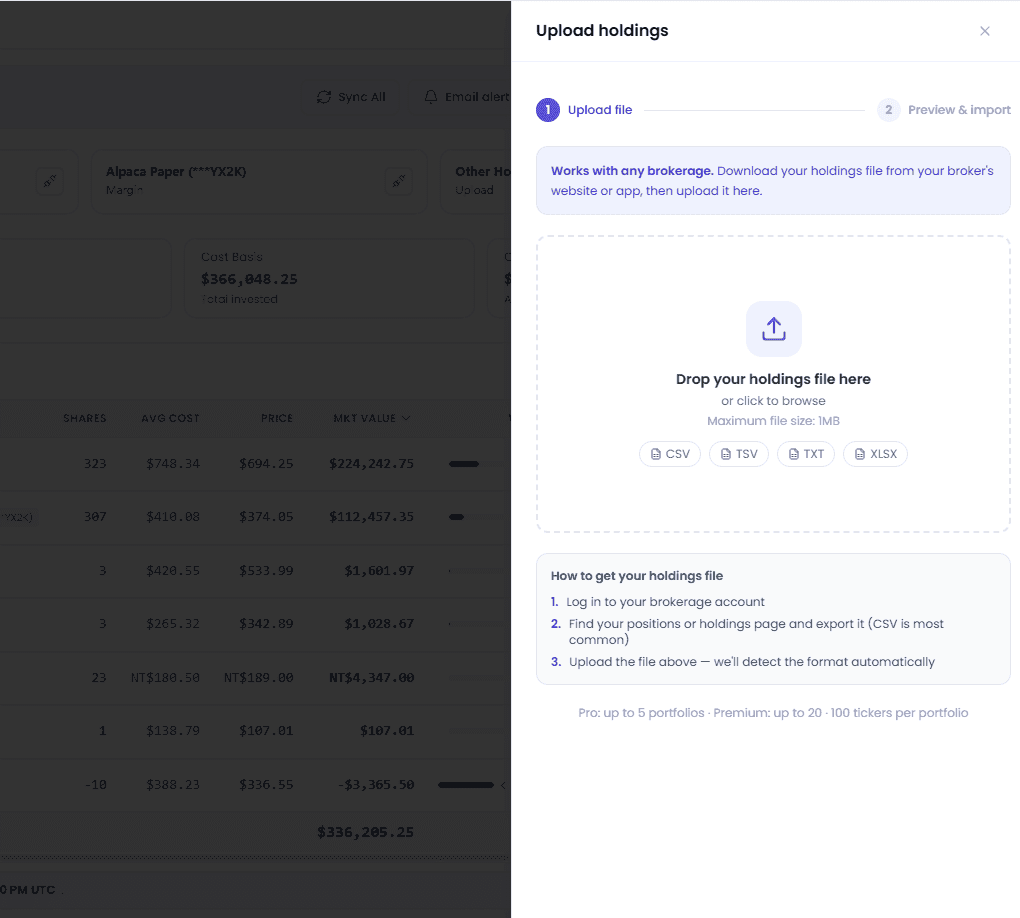
Click the Upload button

-
Click Select file or drag & drop into the upload area
-
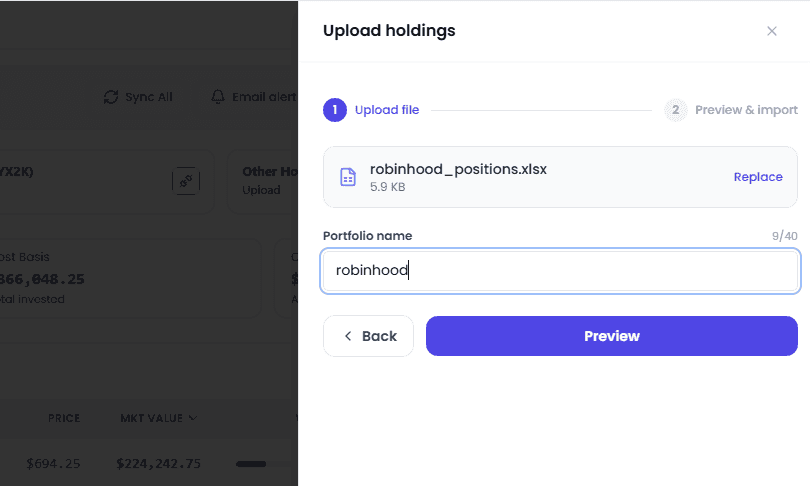
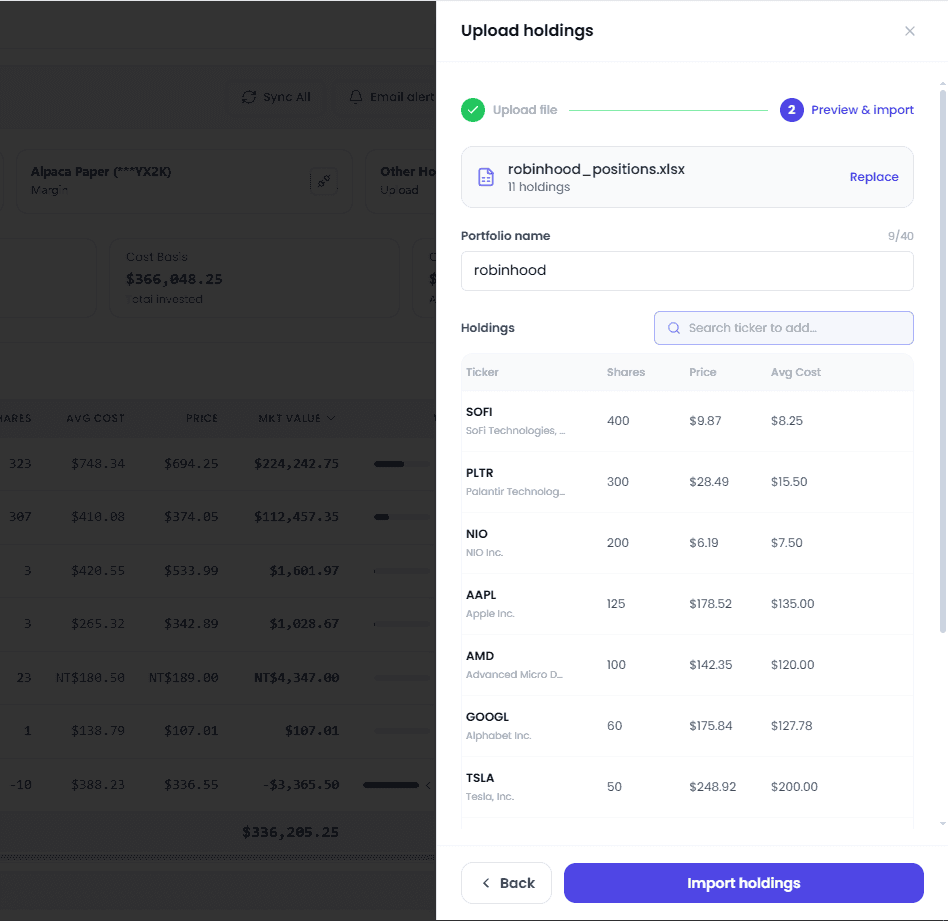
The system auto-parses and displays a preview table
-
On the preview page you can:
- Search and add new tickers
- Edit share count and cost for each stock
- Delete unwanted rows
-
Enter a portfolio name (optional)
-
Click Import holdings to complete
The system attempts to auto-recognize fields like Ticker, Shares, and Cost Basis. Most broker-exported files can be recognized directly. 📁 File size limit: 1 MB. Files larger than this cannot be uploaded.
File Upload Limits
| Plan | File Upload Limit |
|---|---|
| Pro | 5 files |
| Premium / Max | 20 files |
| AppSumo Tier 1 | 5 files |
| AppSumo Tier 2 / Tier 3+ | 20 files |
Each portfolio supports up to 100 holdings.
Managing Uploaded Files
- Edit: Click Edit on the account card, modify holdings, and save
- Delete: Click Disconnect → Delete, confirm to remove all associated data
Page Breakdown
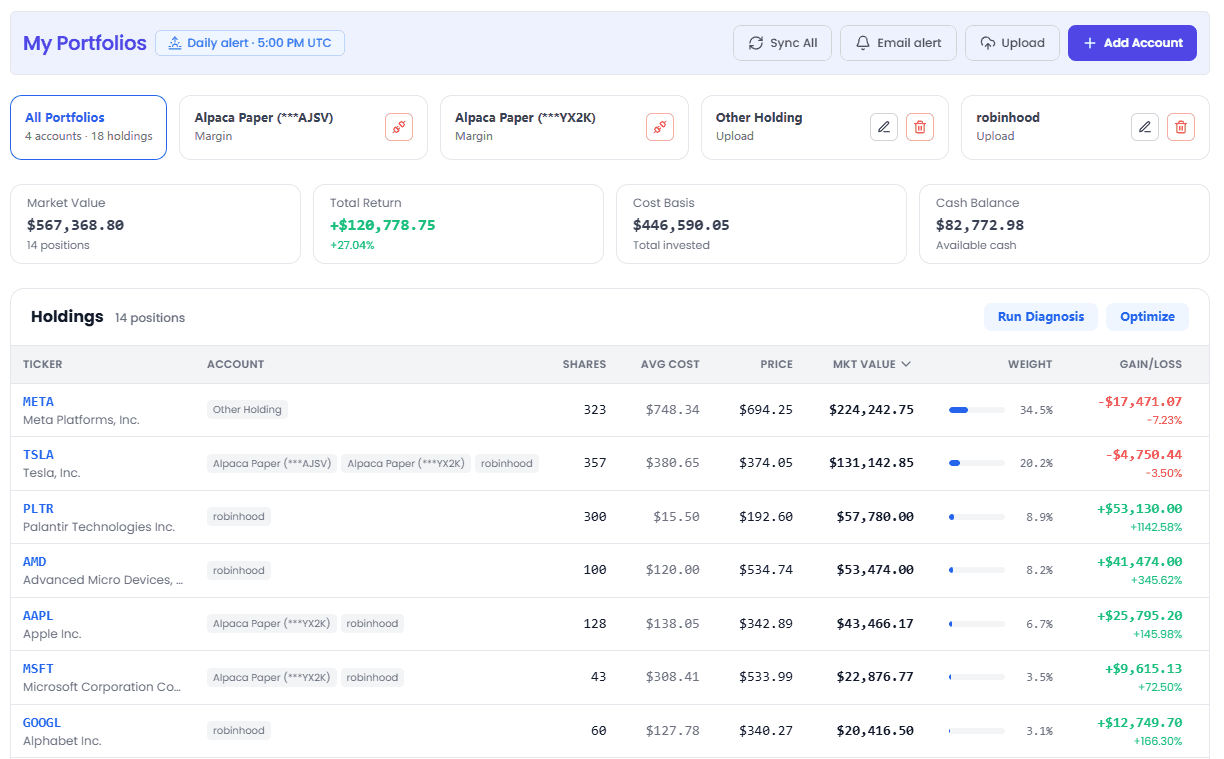
1. Top Header Bar
Left side:
- My Portfolios title
- Daily alert status bar: Shows whether email alerts are enabled and the delivery time
Right side:
- 🔄 Sync — manually sync holdings (SnapTrade-connected accounts only)
- 🔔 Email alert — email alert settings
- ☁️ Upload — upload holdings file
- ➕ Add Account — connect a new broker account (primary button)
2. Account Cards / Account Switching
Single account: Shows one account summary card with account name, type, total market value, daily P&L.
Multiple accounts:
- All account cards arranged horizontally at the top (including an "All Portfolios" summary card)
- The "All Portfolios" card shows total account count and total holdings count
- Click a card to switch to that account's view
- Selected card is highlighted
- Each card has individual actions (Disconnect / Edit)
The "All Portfolios" summary view automatically merges holdings of the same stock across accounts (shares added together, cost basis weighted by shares).
3. Stats Cards (4 cards)
| Card | Meaning | Notes |
|---|---|---|
| Market Value | Total securities market value | Excludes cash, shows holdings count |
| Total Return | Cumulative total P&L | Shows amount and percentage (green = gain, red = loss) |
| Cost Basis | Total cost | Total invested capital |
| Cash Balance | Cash balance | Available cash |
Multi-currency holdings are automatically converted to USD for display. Single-currency accounts show the original currency.
4. Holdings Table
Columns
| Column | Description |
|---|---|
| Ticker | Stock symbol + company name, click to pop up stock details |
| Account | Account label (only shown in "All Portfolios" multi-account view) |
| Shares | Number of shares (supports fractional shares) |
| Avg Cost | Average cost per share |
| Price | Current price |
| Mkt Value | Position market value (shares × price) |
| Weight | Portfolio weight (with progress bar visualization) |
| Gain/Loss | Unrealized P&L (amount + percentage, green = gain, red = loss) |
| AI Research | Quick access to AI research tools |
Sorting
Click column headers to sort by that column (toggle ascending/descending). Sortable columns:
- Ticker (alphabetical)
- Shares (count)
- Avg Cost (cost basis)
- Price (current price)
- Weight (portfolio weight)
- Gain/Loss (P&L amount)
Multi-currency sorting uses USD-converted values for consistent results.
AI Feature Buttons
Three function buttons above the table:
| Button | Function | Permission Required |
|---|---|---|
| Run Diagnosis | Factor exposure analysis | Premium / Max |
| Run Optimization | Portfolio weight optimization | Premium / Max |
| AI Insights | AI deep insights | All paid users |
If your plan doesn't support Diagnosis or Optimization, you'll see an upgrade prompt when clicking.
5. Daily Alert (Email Alerts)
Similar to Watchlist email alerts, but for your portfolio holdings:
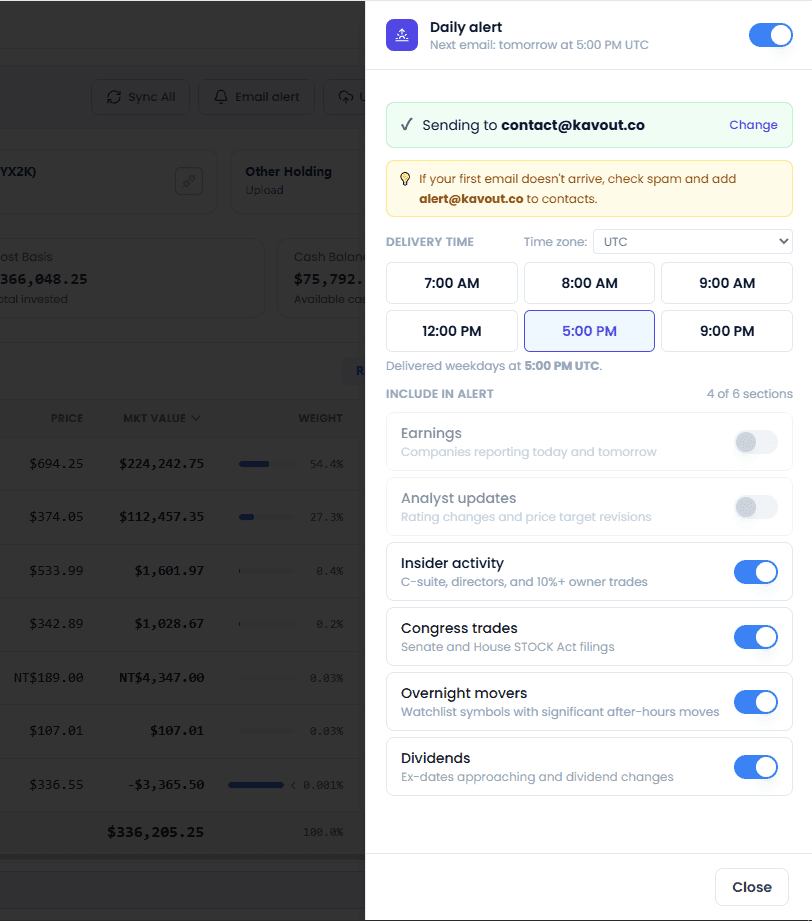
- Sent every business day
- 6 preset delivery time slots: 7:00 AM / 8:00 AM / 9:00 AM / 12:00 PM / 5:00 PM / 9:00 PM
- Selectable time zones (Auto-detect / Americas / Europe / Asia-Pacific / UTC)
- 6 content sections you can toggle on/off:
- 📊 Earnings
- 📈 Analyst updates
- 💼 Insider activity
- 🏛️ Congress trades
- 🌙 Overnight movers
- 💰 Dividends
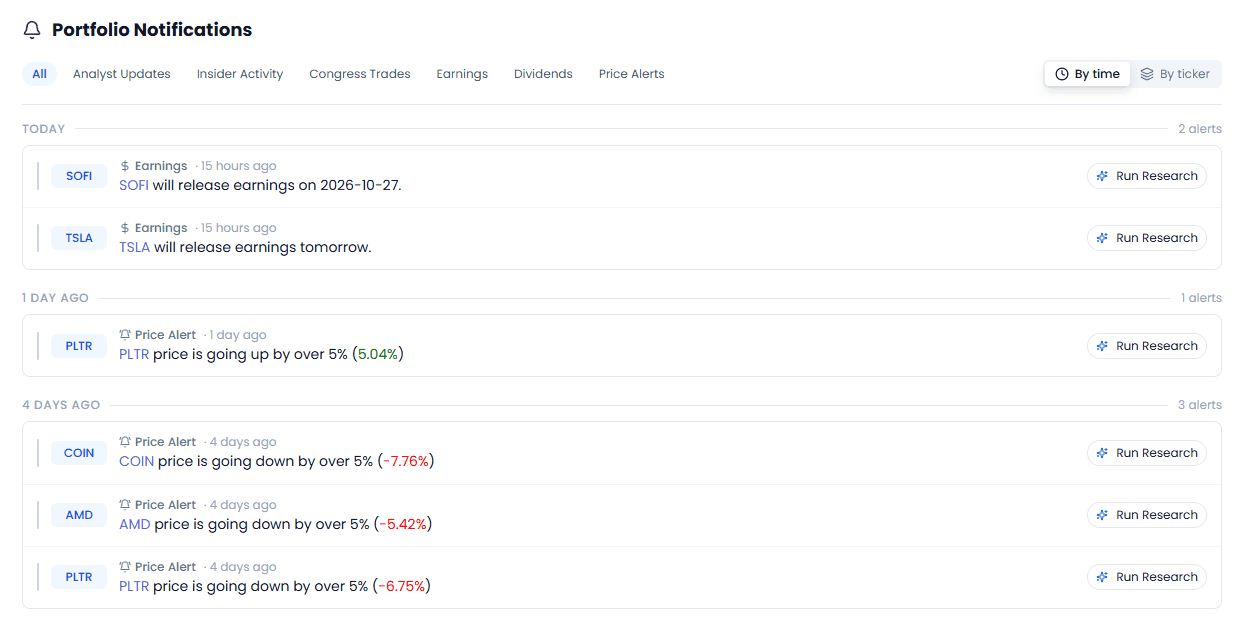
6. Portfolio Notifications
A notification area at the bottom of the page showing real-time event notifications for all holdings in your portfolio.
AI Diagnosis & Optimization
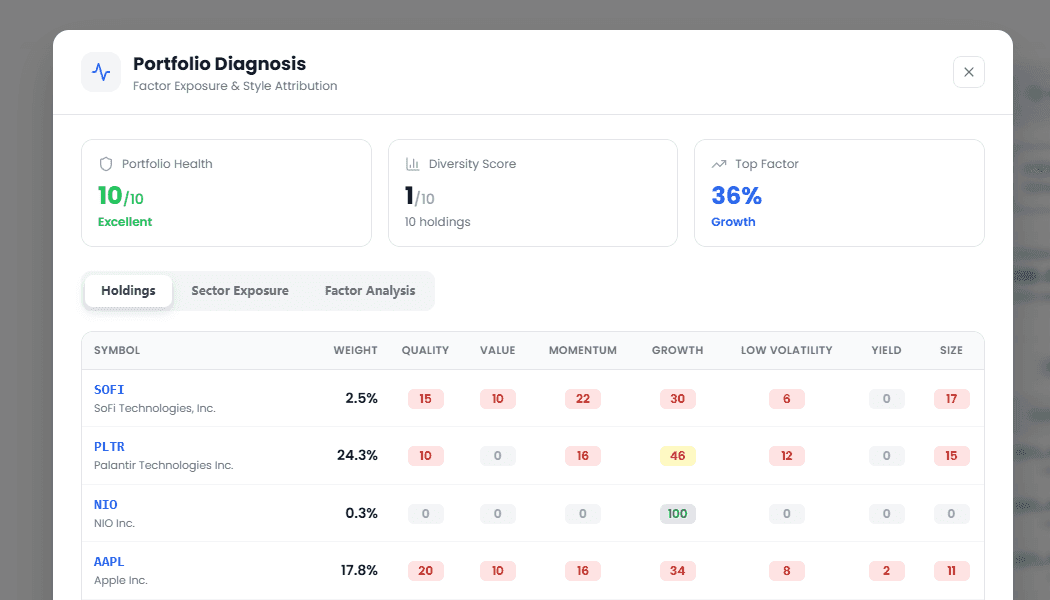
Portfolio Diagnosis
Available on Premium / Max
Click the Run Diagnosis button to open the diagnosis panel with 3 tabs:
1. Holdings (Factor Scores)
- Each stock's 7 factor scores: Quality, Value, Momentum, Growth, Low Volatility, Yield, Size
- Color coding: high scores = dark blue, medium = indigo, low = slate gray
2. Sector Exposure
- Sector distribution donut chart
- Detailed sector weight breakdown
3. Factor Analysis
- Factor return attribution stacked bar chart
- Decomposition of each factor's contribution to portfolio returns
Top 3 Diagnosis Cards:
| Metric | Meaning |
|---|---|
| Portfolio Health | Overall portfolio health score (0-10 scale: Excellent/Good/Fair/Needs Attention) |
| Diversity Score | Diversification score (0-10 scale) |
| Top Factor | Highest factor exposure and its percentage |
Portfolio Optimization
Available on Premium / Max
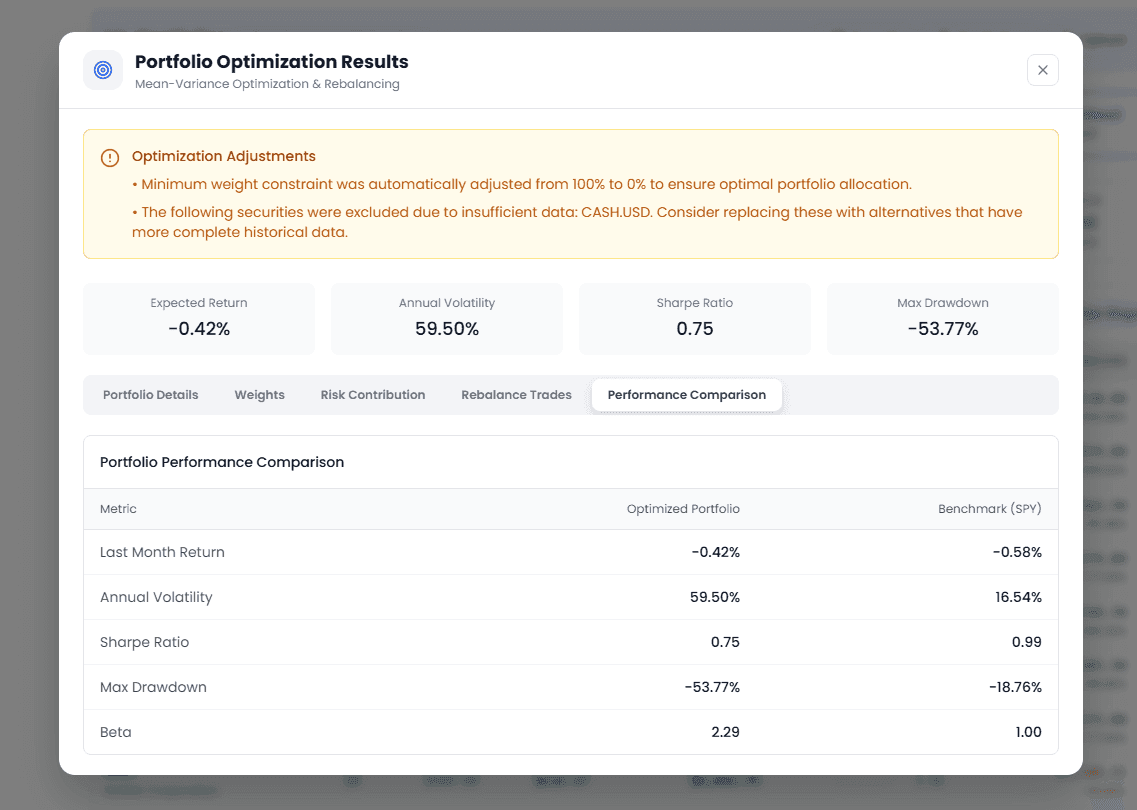
Click the Run Optimization button to open the optimization panel:
- Based on Modern Portfolio Theory (MPT)
- Current weights vs. optimized weights comparison
- Risk / Return / Sharpe ratio before and after optimization
- Performance metrics comparison (volatility, Sharpe, max drawdown, return, Beta)
- Rebalancing trade suggestions (buy/sell, share count, dollar change)
- Sector allocation changes (before/after comparison)
AI Insights
Click the AI Insights button to open a right-side drawer:
- Portfolio summary (total market value, daily P&L, holdings count)
- Unsupported ticker notices (if any)
- Multiple AI-generated deep analysis paragraphs
- Personalized investment advice and research summaries
Multi-Account Management
All Portfolios Summary View
After connecting multiple accounts, the "All Portfolios" summary view is shown by default:
- All account holdings merged
- Same stock held in multiple accounts is automatically combined (shares summed, cost basis weighted)
- Stats cards show aggregated data
- Weights are calculated based on merged total market value
Switching to Single-Account View
Click any account card to switch to that account's independent view:
- Only shows that account's holdings
- Stats data is for that account only
- Uses the account's original currency (if not USD)
Currency Handling
- Single account + single currency: Shows original currency
- Single account + multi-currency: Auto-converts to USD
- Multi-account summary view: All converted to USD for unified display
- Weight calculations always use USD values, ensuring weights sum to 100%
- Numeric column sorting uses USD-converted values for meaningful cross-currency sorting
Data Calculation Rules
Understanding these rules helps you correctly interpret portfolio data:
Market Value, Return, and Cost Basis Definitions
- Market Value: Only counts security holdings, does not include cash
- Total Return = Market Value - Cost Basis
- Cost Basis: Total purchase cost of securities
- Cash Balance: Shown separately in the cash card
- This formula always holds:
Total Return = Market Value - Cost Basis
This design ensures market value and return use the same definition, avoiding distorted yield calculations caused by mixing in cash.
Merging Same-Ticker Holdings Across Accounts
In the "All Portfolios" summary view, if you hold the same stock in multiple accounts:
- Shares: Directly added together
- Average cost: Weighted average by share count
- Market value / book value: Directly added together
- Account: Shows all account labels holding the stock
Multi-Currency Handling
- Each holding has both original currency and USD-converted values
- Display currency is auto-determined:
- Single account + single currency → shows original currency
- Single account + multi-currency → shows USD
- Multi-account summary view → unified USD display
- Weight calculations always use USD values, ensuring weights sum to 100%
- Column sorting uses USD-converted values for meaningful cross-currency sorting
Short Positions
Supports short (negative share) positions:
- When cost is negative, the absolute value of cost is used as the denominator for return calculation
- Price drops → short position profits → positive return
- Price rises → short position loses → negative return
FAQ
Is connecting my broker safe? Is my money at risk?
Very safe. We connect brokers through SnapTrade using bank-grade 256-bit AES encryption. Kavout only gets read-only access — we can only view your holdings data, we cannot perform any trading operations or transfer funds. Your broker username and password are not stored on Kavout's servers.
Which brokers are supported?
We support 100+ brokers through SnapTrade, including Charles Schwab, Fidelity, TD Ameritrade, E*TRADE, Robinhood, Interactive Brokers, Vanguard, and other major US brokers. Click "Add Account" to search the full list in the connection window.
Can I connect multiple broker accounts?
Yes. Different plans support different numbers of accounts: Pro has 5, Premium has 10, Max has 15. All accounts display in the same dashboard — you can switch between them or view the all-accounts summary.
How often is holdings data updated?
- Broker-connected accounts: Auto-sync when the page loads, or click the Sync button anytime to manually refresh
- Uploaded files: Data is fixed at the time of upload; re-upload or edit to update
- Price data updates in real time
Does it support non-US stocks?
Yes. You can add holdings from any market (Hong Kong, A-shares, European stocks, etc.) by uploading a file, as long as there's a ticker symbol. Broker connection support depends on what your broker account holds.
Are there format requirements for uploaded files?
The system auto-parses most broker-exported holdings files (CSV / TSV / TXT / XLSX). It auto-recognizes common fields like Ticker, Shares, and Cost Basis. If auto-recognition is off, you can manually edit and adjust on the preview page.
Can free users use this?
My Portfolios is a paid feature requiring Pro or higher. Free users visiting the page will see an upgrade page introducing features and upgrade options.
Why did my account connection break?
Broker connections are marked as disabled after 12 days of inactivity by default (determined by SnapTrade's security policy). This is a normal security mechanism — just click "Reconnect" to re-authorize and restore.
How do I delete uploaded holdings or disconnect a broker?
- Uploaded files: Click Delete in the account card menu, then confirm
- Broker accounts: Click Disconnect in the account card menu, then confirm to disconnect and remove data
- After deleting/disconnecting, all associated holdings data is removed
What plan do I need for Diagnosis and Optimization?
Portfolio Diagnosis and Portfolio Optimization require Premium or higher. Pro users will see an upgrade prompt when clicking.
Appendix
Page URL
- My Portfolios homepage: https://www.kavout.com/my-portfolios
Screenshots in this article: Actual product UI as of August 2026. For feedback or questions, reach out to our team anytime.